A deck that looks perfect on your laptop can arrive on someone else’s as a font-shattered, reflowed mess. PowerPoint to PDF conversion ends that genre of problem permanently: every slide freezes into a page that looks identical everywhere. Here’s how to convert, what survives, and what to tell people who ask about the animations.
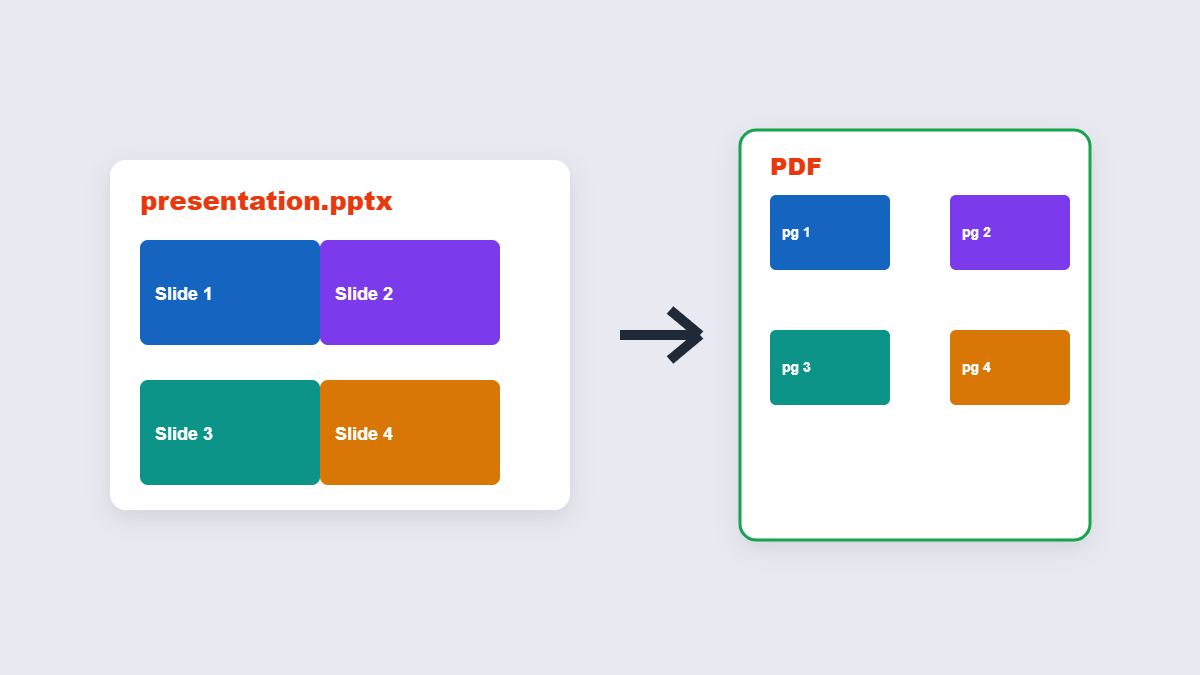
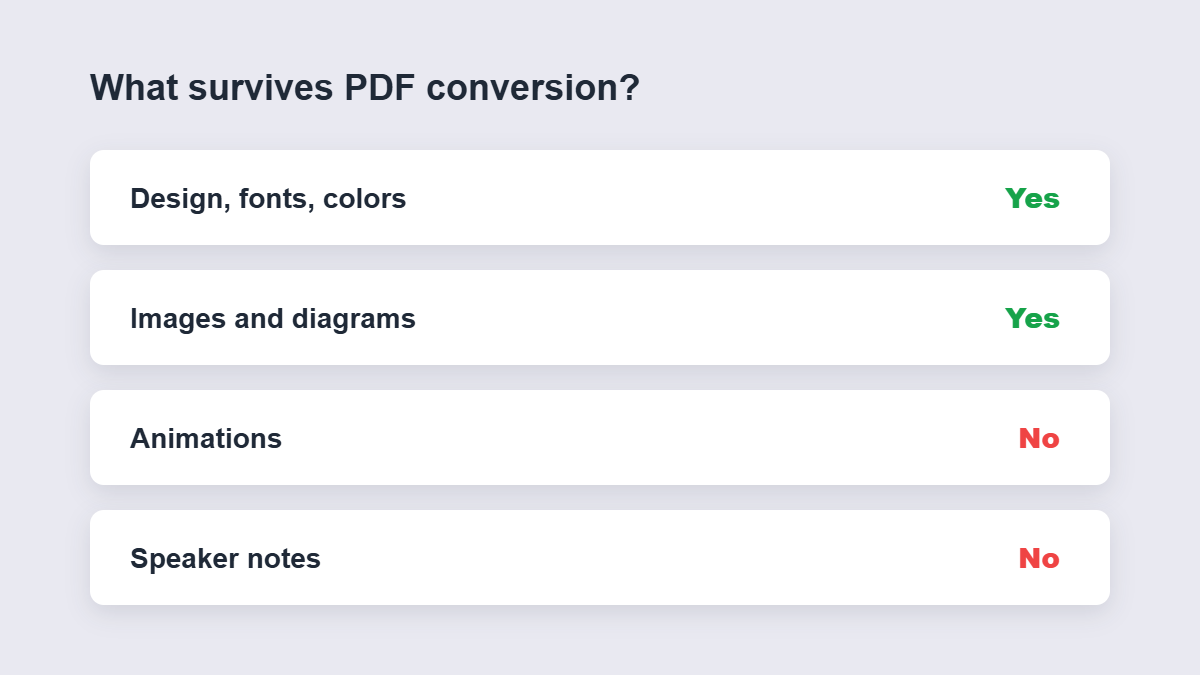
Table of Contents
- Why convert a deck to PDF
- How to convert step by step
- What survives the conversion
- Speaker notes and animations
- The three sharing scenarios
- FAQ
Why Convert a Deck to PDF
- Fonts stop being a lottery. A .pptx opened on a machine without your fonts reflows into something ugly. The PDF embeds the rendering — what you saw is what they get.
- The deck stops being editable. Sending the .pptx invites “small changes” you’ll inherit. The PDF closes that conversation politely.
- Everyone can open it. No PowerPoint, no Google Slides login, no problem — a PDF opens anywhere.
For the presentation itself, keep the .pptx. For everything that happens around the presentation — sending it in advance, emailing it after, printing handouts — the PDF is the format.
How to Convert Step by Step
- Add the deck — drag the .ppt or .pptx into the PowerPoint to PDF tool.
- Start the conversion. Each slide renders as its own page, in order.
- Check the pages — colors, fonts and diagrams should look as designed.
- Download the PDF, ready to email or print.
What Survives the Conversion
| Element | Survives? | Note |
|---|---|---|
| Slide design, fonts, colors | Yes | Rendered as designed |
| Images and diagrams | Yes | At their displayed size |
| Animations and transitions | No | PDF is static — that’s the deal |
| Speaker notes | No | Export a notes version from PowerPoint if needed |
The animation loss is a feature disguised as a limitation: handouts of animated decks consistently read better as static pages, because build-ups that worked on screen become confusion on paper.
Speaker Notes and Animations
Two PowerPoint-specific realities. Speaker notes don’t live on the slides, so they don’t reach the PDF — if you need a notes handout, PowerPoint’s own print dialog does a notes layout. And animations collapse to their final state: the slide shows the end result, not the build-up. If a slide’s meaning depends on the build order, consider splitting it into two slides before converting — the audience reading the PDF never saw the original reveal.
.ppt vs .pptx vs Google Slides
All three convert fine. The legacy .ppt format and the modern .pptx go through the same workflow, and Google Slides exports to .pptx first (File → Download → Microsoft PowerPoint) — then converts like any other deck. Keynote users: export to .pptx as well. The only real requirement is that the file is a genuine PowerPoint format, because the converter renders what PowerPoint would render.
The Three Sharing Scenarios
- Before the meeting: send the PDF. It sets expectations without spoiling the live reveal, and it can’t break on their device.
- After the meeting: send the PDF as the record. What was presented is what they keep.
- To a printer: PDF, always. Print shops ask for it because it eliminates every font and layout variable.
If the deck needs trimming for different audiences, convert once and cut pages with the page deleter rather than maintaining three versions of the .pptx.
After Converting: Two Useful Follow-Ups
The converted deck is a working document now. If it’s going out as a formal record, number the pages — “slide 14” complaints end when pages carry numbers. And if only part of the deck is going to each stakeholder, run the PDF through the split tool once and send everyone their slice — versus emailing a 60-slide file where each person’s five slides are buried somewhere in the middle.
Handouts: One Slide Per Page or Several?
The PDF this tool produces gives one slide per page — the right format for screen sharing and archiving. For printed handouts, several-slides-per-page saves paper, and the tool to get there is a printer setting rather than a conversion setting: print the PDF with the “multiple pages per sheet” layout option. Two prints to rule them all — one slide per page for the boss’s review copy, six per page for the lecture hall.
FAQ
How do I convert PowerPoint to PDF for free?
Add the .ppt or .pptx to an online converter and download the PDF — every slide becomes a page. Free, no account needed.
Do animations play in the PDF?
No — slides convert as static pages showing their final state. That’s standard for handouts and records.
Are speaker notes included?
No — notes aren’t part of the slide pages. Export a notes layout from PowerPoint if you need them on paper.
Will the fonts look right on any device?
Yes — that’s the main reason to convert. The PDF embeds the rendering, so fonts can’t be substituted on the recipient’s machine.
Is my presentation processed in your browser?
Not with browser-based tools — the conversion runs on your device, so client decks stay offline.
Can I convert just some slides?
Convert the whole deck, then trim the PDF to the slides you want with a page-deletion tool.
