Some files are for everyone: a menu, a brochure, a public report. And some files are for exactly one person: the signed contract, the salary letter, the tax summary. For that second kind, a password on the PDF is the difference between “sent” and “sent securely” — and adding one takes under a minute.
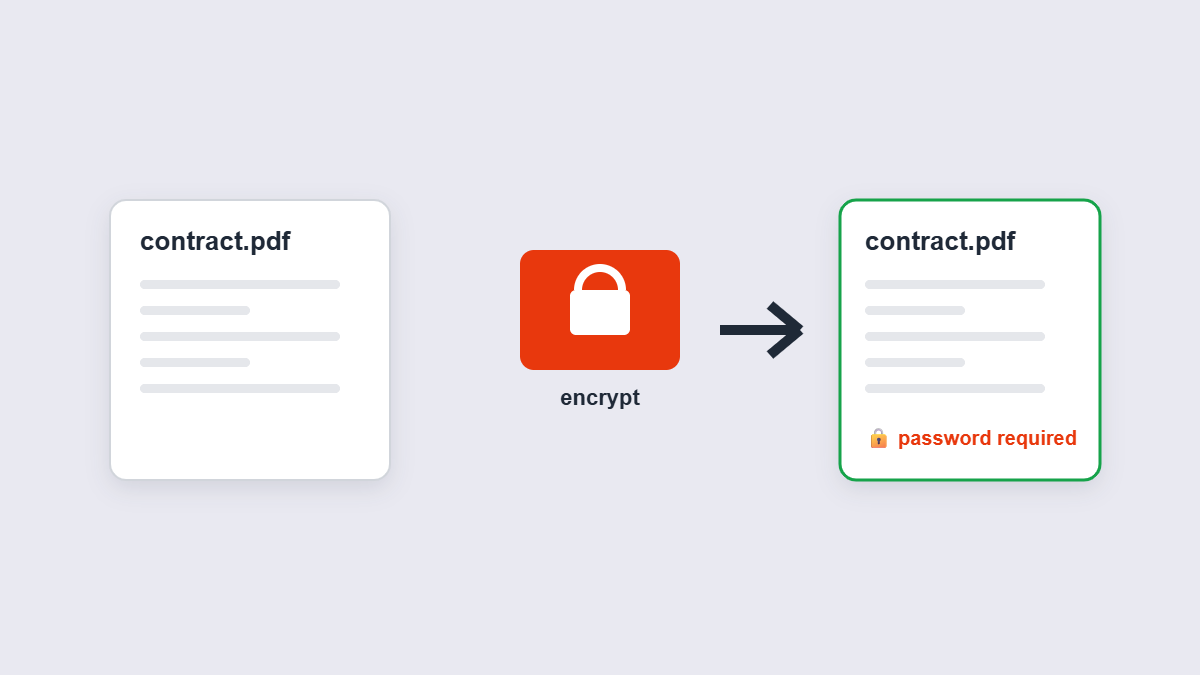
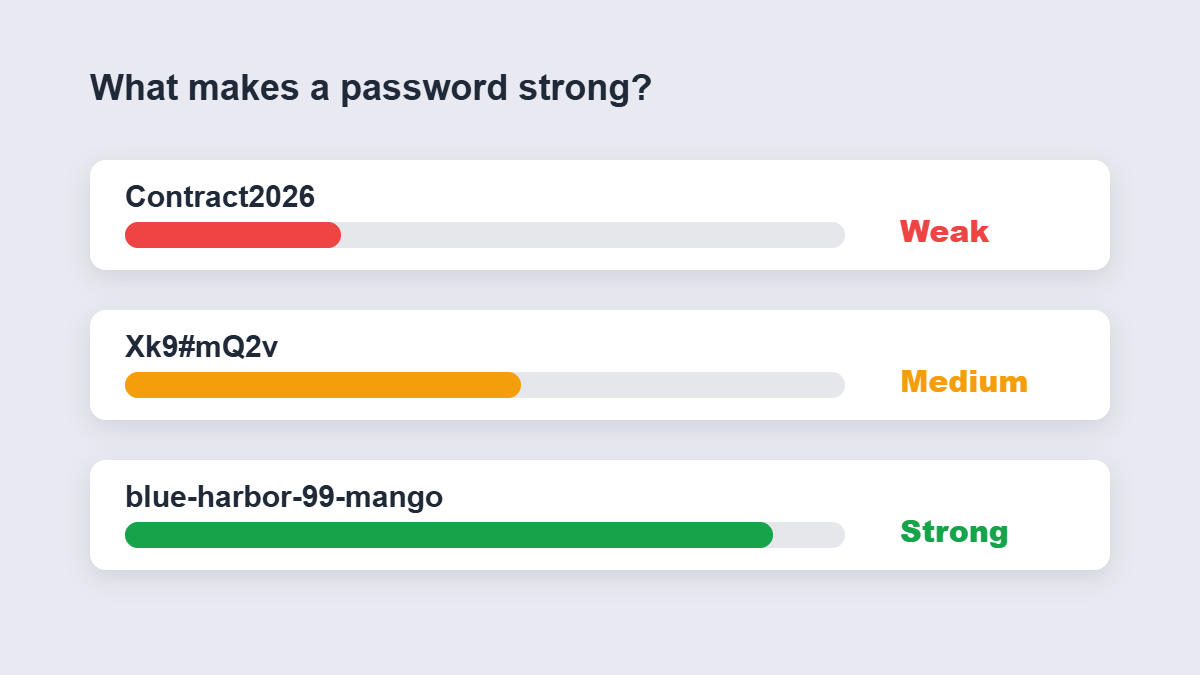
Table of Contents
- How to password protect a PDF
- What makes a password strong enough
- What the recipient experiences
- The forgotten-password problem
- What PDF passwords don’t protect against
- FAQ
How to Password Protect a PDF
- Add the PDF to the Protect PDF tool.
- Type your password — a long phrase beats a short word with symbols.
- Apply the encryption. The file is locked in your browser.
- Download and share — with the password sent separately.
That last point is the one people fumble: never send the password in the same email as the file. If the email is intercepted, the attacker has both. Send the file by email and the password by text message or a phone call — the two channels should never travel together.
What Makes a Password Strong Enough
| Password | Verdict | Why |
|---|---|---|
| Contract2026 | Weak | Guessable pattern — year plus a dictionary word |
| Xk9#mQ2v | Middle | Random but short — brute-forceable eventually |
| blue-harbor-99-mango | Strong | Long, random words — length beats complexity |
Length is the whole game: a four-word random phrase is harder to crack than an eight-character symbol soup, and it’s easier to say aloud on a phone call. Generate one with a password generator rather than inventing it — human-invented passwords cluster around predictable patterns.
What the Recipient Experiences
This is where PDF passwords shine compared to zip archives: no special software needed. The recipient opens the file in any standard PDF reader — Acrobat, a browser tab, a phone viewer — gets a password prompt, types it once, and reads the document. No app to install, no account to create, no extraction step. If your recipient is a client who “isn’t technical,” this is the smoothest secure-delivery option that exists.
PDF Password vs Zip Password
The classic alternative is zipping the file with a password. It works, but the experience is worse on both ends: the recipient needs an unzip step (and on some devices, an extra app), and the PDF inside remains an unprotected file the moment it’s extracted. PDF encryption keeps the protection and the document in one file — open it with the password and read it, no extraction, no leftover unprotected copy sitting in a downloads folder.
| Password-protected PDF | Password-protected ZIP | |
|---|---|---|
| Recipient needs | Any PDF reader | Unzip tool or app |
| Extra steps after unlock | None — it opens as the document | Extract, then open the file |
| Leftover unprotected copy | No | Yes, after extraction |
The Forgotten-Password Problem
There is no password recovery. The password isn’t stored anywhere — not by the tool, not in the file. That’s not a flaw; it’s the entire security model. But it means one thing is non-negotiable: record the password before you send the file. A password manager is the right place. If you lock a client’s contract with a password you lose, you’re re-doing the document from scratch — or worse, you can’t.
If you ever need the file back in open form, the Unlock PDF tool removes protection you set yourself — you provide the password you own, and it hands back an unlocked copy.
A Complete Sharing Workflow, End to End
Here’s the routine that handles a confidential document properly in about two minutes. Prepare the final version first — merge the parts, run a compression pass if it’s a scan. Then protect it with a generated password and save. Compose the email, attach the protected file, and write everything except the password. Send it. Then send the password by text or say it on a call. The recipient opens a file that was never exposed unprotected at any point in its journey — and you have a clean story if anyone ever asks how it was handled.
What PDF Passwords Don’t Protect Against
Honesty time, because this matters: password protection stops casual access — the file sitting in someone’s downloads, the email forwarded to the wrong person. It does not survive a determined attacker with cracking tools and time, and it doesn’t stop the authorized recipient from photographing the screen and sharing the photos. For genuinely sensitive material, treat the password as one layer: send it to the right person, over a separate channel, and keep the distribution list short. It’s the right tool for the everyday job — just not a magic one.
Protecting Several Files at Once
A batch of confidential files — monthly statements, say — multiplies both the work and the risk of sloppy passwords. Two rules keep it clean: use a different password per file (one leaked password shouldn’t unlock everything), and protect the files before they leave, never after. If the files belong together as one package, merge them into one PDF first and protect that single file — one password, one attachment, one thing for the recipient to keep track of.
FAQ
How do I password protect a PDF for free?
Add the PDF to an online protection tool, type your password, and download the encrypted copy. Free, no account, and browser-based tools encrypt without uploading the unprotected file.
Is the protection real encryption?
Yes — standard PDF password encryption. Without the password, a reader cannot open the content.
What if I forget the password?
There’s no recovery — the password is stored nowhere. Write it down in a password manager before sending the file.
Does the recipient need special software?
No. Any standard PDF reader prompts for the password and opens the file normally.
Can I remove the password later?
Yes — with the password you set, the Unlock PDF tool hands back an unprotected copy of the same document.
Is my file processed in your browser?
Not with browser-based tools — the encryption runs on your device, which is exactly the point of locking a file.
