PDF has become the default format for sending a document to someone else, and for good reason: it looks the same on every device, it can’t be accidentally edited, and almost every computer and phone can open one without extra software. The catch is that most of what you actually create, whether it’s a Word document, a spreadsheet, a slide deck, or a plain text file, doesn’t start out as a PDF. It has to get converted first, and doing that the right way matters more than people expect.
The good news is that converting almost any common file type to PDF (or back again) takes seconds in a browser, for free, with no software to install and no account to create. Whether you’re finalizing a report before it goes to a client, prepping a spreadsheet for print, or just need a presentation to open reliably on someone else’s laptop, the right converter turns it into a clean, dependable PDF in one step. This guide covers the specific conversions people need most, what to expect from each one, and which free tool handles it.
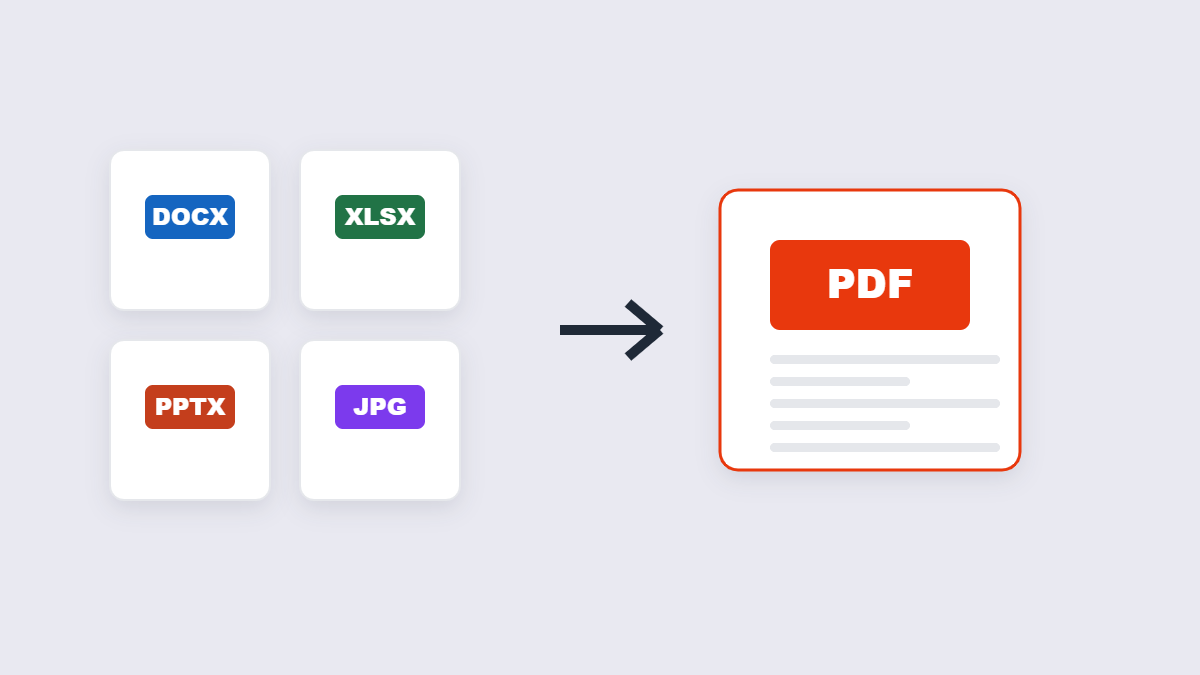
Table of Contents
- How It Works: Convert a File in 3 Simple Steps
- 11 Ways to Convert Your Files to (and from) PDF
- Which Converter Do You Actually Need?
- Is It Safe to Convert Documents Online?
- Frequently Asked Questions
- The Bottom Line
How It Works: Convert a File in 3 Simple Steps
Every converter below follows the same basic flow.
- Upload your file. Drag and drop it, or click to browse for it, directly in the converter.
- Let the tool convert it. The layout, fonts, and formatting are rebuilt automatically in the new format.
- Download the result. Your converted file is ready in seconds, processed locally in your browser.
No uploads sitting on a server, no watermark added to your document, and no limit on how many files you can convert. Here’s a breakdown of the specific conversions people search for most.
11 Ways to Convert Your Files to (and from) PDF
1. Convert Word to PDF
This is the most common document conversion there is. A Word file can shift its formatting depending on the software and fonts installed on whoever opens it, but converting it to PDF locks in the exact fonts, spacing, and layout, so it looks identical everywhere, whether it’s opened on a laptop, a phone, or printed directly from a browser. Both older .doc files and modern .docx files are supported.
Try the free Word to PDF tool.
2. Convert Excel to PDF
Spreadsheets are built for editing, not sharing, which is why sending a finished report as an Excel file often ends with someone accidentally changing a formula or resizing a column. Converting to PDF turns your rows, columns, and multiple sheets into a clean, print-ready document that nobody can accidentally alter, with wide tables automatically scaled to fit the page.
Try the free Excel to PDF tool.
3. Convert PowerPoint to PDF
Sharing a presentation as a PDF means anyone can view your slides exactly as designed, without needing PowerPoint installed and without any risk of fonts or formatting shifting on their device. Each slide becomes one page, in order, ready to send, print, or archive alongside the rest of a project’s documentation.
Try the free PowerPoint to PDF tool.
4. Convert a PDF Back to an Editable Word Document
Sometimes the conversion needs to go the other way. If you’ve received a PDF and need to actually edit the text inside it, converting it to Word extracts the real text and rebuilds the layout into a genuinely editable .docx file, rather than a locked image of the page, so you can start making changes immediately instead of retyping everything from scratch.
Try the free PDF to Word tool.
5. Convert ODT (OpenDocument) to PDF
Files created in LibreOffice Writer or OpenOffice Writer use the .odt format, which not every device or program can open. Converting to PDF makes the document universally readable, regardless of whether the person opening it has LibreOffice, OpenOffice, or neither installed, and it avoids the formatting quirks that can happen when someone tries to force an .odt file open in different software.
Try the free ODT to PDF tool.
6. Convert Plain Text (TXT) to PDF
A raw .txt file is just text with no page structure, no pagination, and no visual formatting. Converting it to PDF automatically lays the content out onto properly paginated pages, turning a plain text dump, like exported notes, logs, or a script, into something that actually looks like a finished document.
Try the free TXT to PDF tool.
7. Convert Rich Text (RTF) to PDF
RTF is a format nearly every word processor can open, which makes it a common export option, but it’s still an editable file rather than a finished document. Converting to PDF preserves the bold, italic, and font formatting from the original while locking the file down so it can’t be casually changed by whoever receives it next.
Try the free RTF to PDF tool.
8. Convert CSV Data to a Readable PDF
A CSV file is just comma-separated values with no visual structure at all until it’s opened in the right software. Converting to PDF arranges that raw data into a clean, formatted table, complete with headers and rows, that’s actually easy to read, print, or share with someone who doesn’t use spreadsheet software or just wants a quick look at the numbers.
Try the free CSV to PDF tool.
9. Convert Word, Excel, or PowerPoint Directly to JPG
Sometimes what you need isn’t a PDF at all, it’s an image of a specific page or slide, for a quick preview, a social post, or embedding in another document. Word, Excel, and PowerPoint files can each be rendered directly into JPG images, one per page or slide, without needing to convert to PDF first, and every image downloads at a high enough resolution to stay readable.
Try the free Word to JPG, Excel to JPG, or PPT to JPG tool.
10. Convert Images Into a PDF
Going the other direction, you can combine one or more photos, scanned pages, or screenshots into a single PDF document. Arrange them in the order you want first, and each image becomes its own page in the finished file, which is a fast way to turn a stack of scanned paperwork, receipts, or handwritten notes into one shareable document instead of a folder full of separate photos.
Try the free Image to PDF tool.
11. Know When PDF Isn’t the Right Format
PDF is great for sharing a finished document, but it’s the wrong choice the moment someone actually needs to edit the content. If a document is still in progress and will need more changes, keep sharing it in its original editable format (Word, Excel, ODT) and save the PDF conversion for once it’s genuinely finished and ready to send, print, or archive.
Not sure which direction to convert? See the comparison table below.
Which Converter Do You Actually Need?
If you’re not sure where to start, match your situation to the row below.
| If you have… | Use this tool |
|---|---|
| A Word document (.doc or .docx) | Word to PDF |
| An Excel spreadsheet (.xls or .xlsx) | Excel to PDF |
| A PowerPoint presentation (.ppt or .pptx) | PowerPoint to PDF |
| A PDF you need to edit as text | PDF to Word |
| An OpenDocument file (.odt) | ODT to PDF |
| A plain text file (.txt) | TXT to PDF |
| A rich text file (.rtf) | RTF to PDF |
| A CSV data file | CSV to PDF |
| A document you need as an image, not a PDF | Word to JPG / Excel to JPG / PPT to JPG |
| Photos or scans to combine into one file | Image to PDF |
Is It Safe to Convert Documents Online?
It’s worth understanding how a tool processes your file before uploading anything with sensitive content, like a contract, financial statement, or personal records. On 11zon, document and PDF tools run locally in your browser rather than sending your file to a remote server, so your document stays on your own device throughout the entire conversion.
For anything genuinely sensitive, it’s still worth keeping a couple of habits: hold on to your original file until you’ve confirmed the converted version looks right, and if the finished PDF needs to be shared outside your organization, consider adding a password with the Protect PDF tool before sending it.
It’s also worth remembering that converting to PDF is a one-way trip for anything you don’t want visible. Comments, tracked changes, and speaker notes in the original file aren’t always meant to be seen by whoever receives the PDF, so it’s worth reviewing your source document for anything you’d rather leave out before converting.
Frequently Asked Questions
Why convert a document to PDF instead of just sharing the original file?
PDF locks in your fonts, layout, and formatting so the document looks identical no matter what device or software opens it, unlike an editable file, which can shift depending on what’s installed on the other end.
Will converting to PDF change my formatting?
A good converter preserves fonts, spacing, tables, and images as closely as possible to the original. Very complex or design-heavy documents may need minor adjustments afterward, but standard documents typically convert cleanly.
Can I convert a PDF back into an editable format?
Yes. Converting a PDF to Word extracts the text and rebuilds the layout into a genuinely editable document, which is the standard way to go from a finished PDF back to something you can change.
Is it safe to upload sensitive documents to an online converter?
It depends on how the tool processes your file. Tools that run entirely in your browser, rather than uploading your document to a server, keep your file on your own device throughout the process, which is the safer option for sensitive content.
Do I need an account to convert files?
No. Free online converters are typically built for one-off tasks with no sign-up, no watermark added to your file, and no limit on how many times you can use them.
Can I convert multiple files at once?
Most converters handle one document per conversion, though tools like Image to PDF let you combine several images into a single output file in one step.
Do I lose editing history or version information when converting to PDF?
Yes, and that’s usually the point. A PDF is meant to be a finished snapshot of a document, so version history, track-changes data, and edit logs from the original file format don’t carry over. If you need to preserve that history, keep the original editable file archived alongside the PDF.
What’s the difference between converting to PDF and converting to JPG?
Converting to PDF keeps your document as a paginated, universally readable file. Converting to JPG turns each page into a standalone image, which is better suited for previews, embedding, or sharing a single page rather than the whole document.
Will comments or tracked changes show up in the converted PDF?
It depends on how they’re displayed in the original file. Visible comments or markup will typically convert along with the rest of the page, so it’s worth reviewing and accepting or removing anything you don’t want included before converting.
Can I convert a password-protected document?
You’ll generally need to remove the password from the original file before converting it. Once the converted PDF is ready, you can add a new password of your own with a tool like Protect PDF.
The Bottom Line
Whatever format your file started in, whether it’s Word, Excel, PowerPoint, plain text, or a spreadsheet, getting it into a clean, shareable PDF (or back out of one) takes seconds and doesn’t require installing anything. There’s no software to buy, no account to create, and no watermark stamped on the result just for using the free version. Bookmark this guide, and next time you need to convert a file, you’ll know exactly which free tool to reach for.
