You’ve got a PDF and someone wants pictures — slides for a deck, a page for a WhatsApp message, or a preview image for a listing. Converting PDF pages to JPG is quick, but the resolution choice trips everyone up. Here’s how to do it right, with honest advice on DPI.
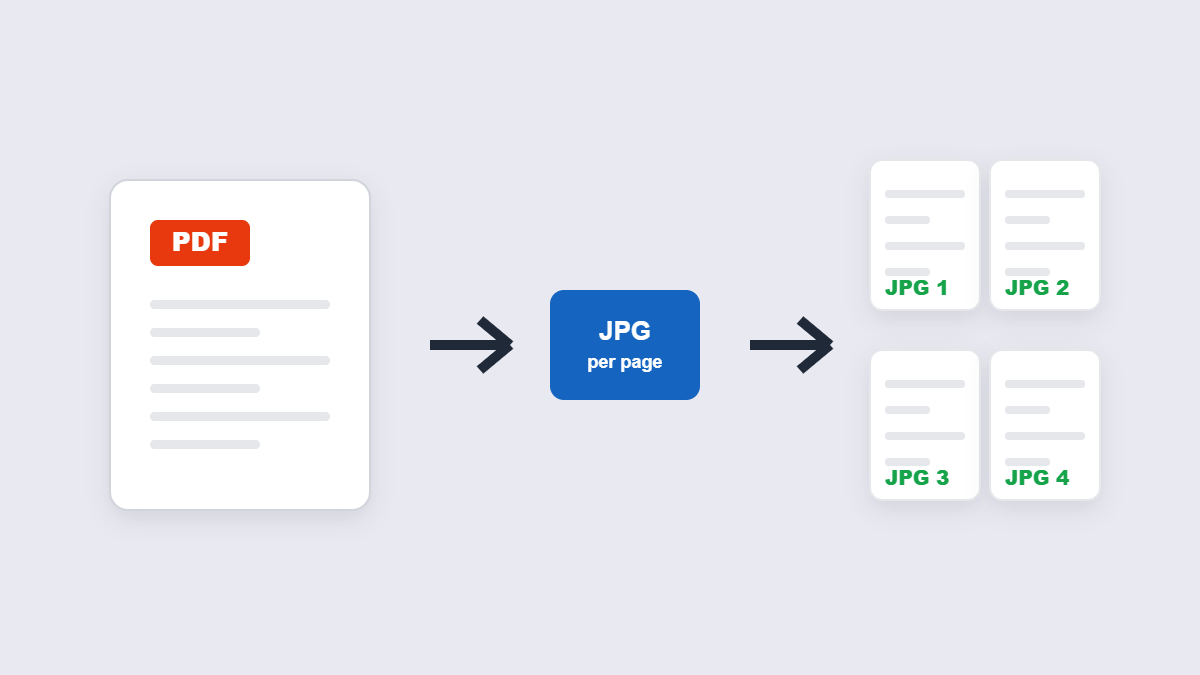
Table of Contents
- How to convert a PDF to JPG
- Which resolution should you pick?
- JPG or PNG — which format?
- What people actually use this for
- Common problems
- FAQ
How to Convert a PDF to JPG
- Add the PDF — drag it into the PDF to Image tool or click Select PDF to browse.
- Pick JPG as the output format.
- Convert. Every page renders as its own image, in order.
- Download — grab a single page or the whole set.
That’s the whole job. The one decision that matters is resolution, so let’s get it right.
Which Resolution Should You Pick?
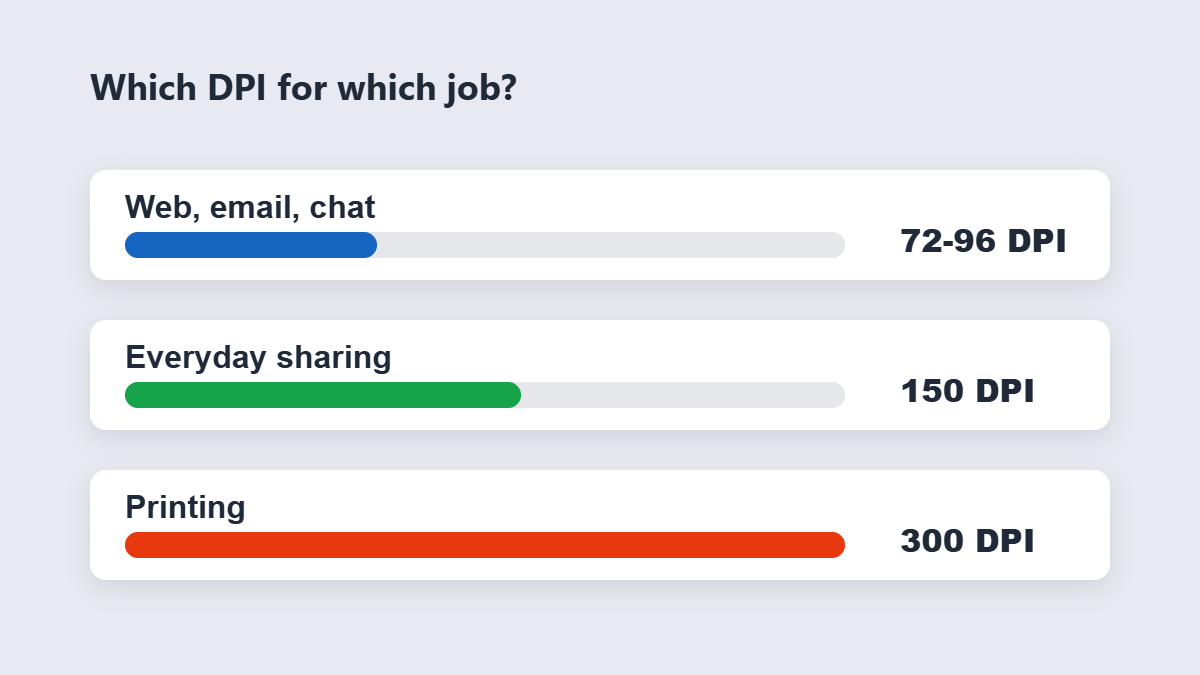
DPI (dots per inch) decides how much detail each image carries — and how big the files are. The industry rule of thumb:
| Use case | DPI | Why |
|---|---|---|
| Web pages, WhatsApp, email | 72–96 | Screens can’t show more — smaller files, faster sending |
| Everyday sharing and previews | 150 | The safe middle — sharp on screen, reasonable size |
| Printing | 300 | Crisp on paper, but files get heavy |
The mistake people make: converting at 300 DPI “just in case,” then wondering why the JPGs are huge. Match the DPI to the destination. You can always re-convert at higher DPI from the original PDF — you can’t recover quality from an already-tiny image.
Why Not Just Screenshot the Page?
Fair question — a screenshot is free and instant. But it’s the wrong tool for anything more than a one-off: screenshots capture at your screen’s size and your window’s clutter, so a full page rarely fits without stitching. A proper conversion renders the page at the DPI you choose, edge to edge, at consistent quality across all pages. If you need three pages next week too, the converter does the whole file in one pass — screenshots would take twelve awkward scrolls and crops.
JPG or PNG — Which Format?
- JPG for photo-heavy pages: smaller files, and the slight compression is invisible in this context.
- PNG for pages that are mostly text, tables or screenshots: perfectly sharp edges, no artifacts — at the cost of bigger files.
Quick decision: photo pages → JPG. Text-heavy pages you’ll read on screen → PNG. If you convert to PNG and the files are too big, the image compressor can bring them down.
What People Actually Use This For
Real-world patterns from support inboxes and forums: extracting one slide from a deck to drop into a chat, sending a single contract page as a picture (which also stops casual editing), uploading “document previews” to marketplaces that reject PDFs, and turning scanned certificates into shareable images. In every case the pattern is the same: the PDF is the archive format, the JPG is the sharing format.
One privacy note that matters here: a browser-based converter renders the pages on your device — the document never uploads. For anything confidential, that’s the difference between safe and sorry.
JPG Quality, Demystified in Three Lines
Most converters handle quality for you, but if you ever get a slider: 80 is the sweet spot for photos, 60 starts showing fuzz around text, and 95 doubles the file size for a difference nobody can see. Screens render JPG artifacts invisibly at these levels — the horror stories you’ve read come from repeatedly re-saving an already-compressed image, which is a different mistake entirely. Convert once from the PDF at your chosen DPI and stop.
Where Do Your Pages Go During Conversion?
Worth checking before you convert anything confidential, because converters differ fundamentally. Browser-based tools render the pages on your device using the same engine your browser uses to display PDFs — the document never transmits anywhere. Upload-based tools send the whole file to a server, convert it there, and delete it after a retention window. Both work; only one keeps a salary slip or client contract entirely offline. The converter’s own FAQ should state which model it uses in one plain sentence — if it dances around the question, that’s information.
And regardless of tool: the output images carry none of the PDF’s text layer. Converting to JPG is a one-way door — keep the original PDF as your editable, searchable master.
Common Problems
| Problem | Cause | Fix |
|---|---|---|
| Text looks blurry | Converted at low DPI | Re-convert from the PDF at 150+ DPI |
| Images too big to send | Converted at 300 DPI | Re-convert at 72–96 DPI, or run through a compressor |
| Wrong page converted | Converted the whole file | Convert all, keep the one you need — every page is its own image |
| Colors look slightly off | Color profile differences | Minor on screen; use PNG for color-critical pages |
After Converting: Three Quick Follow-Ups
The converted images rarely need nothing. Two follow-ups cover most cases: if the images are for the web, run them through a compression pass — converted pages still carry more weight than they need. And if you only wanted one page but converted twelve, rename the keeper before it drowns in a downloads folder. Small habits, but they’re the difference between “the images are somewhere” and “the image is sent.”
Converting Big Documents Without Chaos
A 60-page PDF becomes 60 images, and “IMG_0001 through IMG_0060” in your downloads folder is how confusion starts. Two habits keep it sane: rename the batch immediately with the document’s name and a number (“contract-page-01”), and convert at the DPI your smallest destination needs — there’s no point carrying 300 DPI images that will only ever be texted. If you genuinely need one image from a big file, converting everything feels wasteful, but it’s still faster than hunting for a tool that does single pages only.
FAQ
How do I convert a PDF to JPG for free?
Add the PDF to a browser-based converter, choose JPG, and download one image per page. Free, no account, and with browser tools the document never leaves your device.
What DPI should I use?
72–96 for web and email, 150 as the everyday default, 300 only for printing. Matching DPI to destination keeps files the right size.
Will converting to JPG lose quality?
JPG compression is technically lossy, but at sensible settings the difference is invisible on screen. For pixel-perfect text, convert to PNG instead.
Can I convert just one page?
Yes — convert the file, then keep only the image for that page. Each page becomes its own image, so grabbing one is easy.
Why are my converted images so big?
You likely converted at print DPI. Re-convert at 96–150 DPI — on-screen quality won’t change, file size will drop dramatically.
Is my PDF processed in your browser?
Not with browser-based tools — the pages render locally on your device. Check a converter’s FAQ before using it for confidential documents.
