The Word-to-PDF direction is solved: any decent converter produces a faithful, uneditable copy. The reverse direction is where expectations break — PDF back to Word is a reconstruction, not a conversion, and knowing the difference saves hours of frustration. This guide covers both directions, what converts cleanly, what never does, and the privacy question most tool pages dodge.
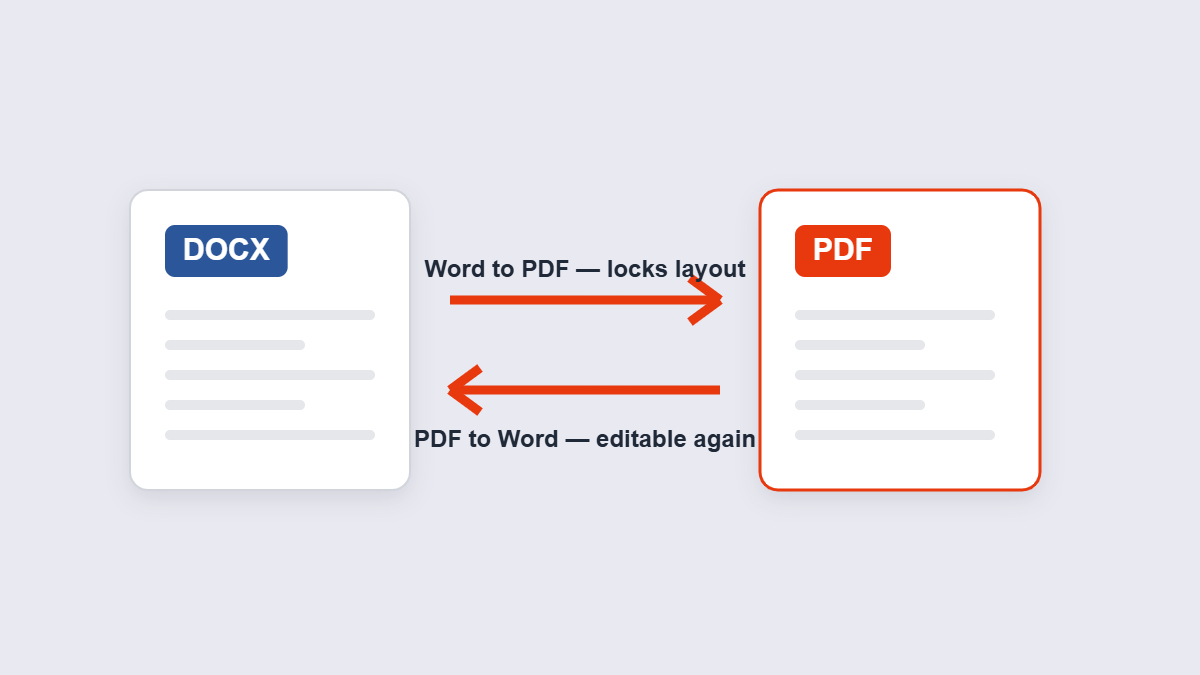
Table of Contents
- Why the two directions aren’t equal
- Word to PDF: the safe direction
- PDF to Word: what converts cleanly
- Scanned PDFs are a different animal
- The privacy question nobody answers
- FAQ
Why the Two Directions Aren’t Equal
A DOCX file is a description: “this is a paragraph, in this font, with this spacing.” Converting to PDF just renders that description — deterministic, reliable, done.
A PDF is the opposite: a bag of positioned elements — glyphs placed at coordinates, with no memory that three lines form one paragraph. Going back to Word means a converter must guess the structure: which lines are paragraphs, what’s a table, what’s a header. Different tools guess differently, which is why the same PDF converts beautifully in one tool and arrives a jumble in another. No converter wins universally, because reconstruction quality depends on how the specific PDF was built.
Word to PDF: The Safe Direction
- Add the .doc or .docx to the Word to PDF tool.
- Convert — fonts, spacing, margins and page breaks are rendered into the PDF.
- Check the pages and download.
You already own this if Microsoft Word is installed: File → Save As → PDF works fine. The online tool earns its keep when you’re on a phone, a borrowed laptop, or any machine without Word — and it handles the reverse direction too, which Word can’t.
| Element | |
|---|---|
| Survives Word→PDF? | |
| Fonts and spacing | Yes — rendered as displayed |
| Clickable links | Usually, where layout allows |
| Editable text | No — that’s the entire point |
| Animations/tracked changes | No — PDF is a static snapshot |
PDF to Word: What Converts Cleanly (and What Never Does)
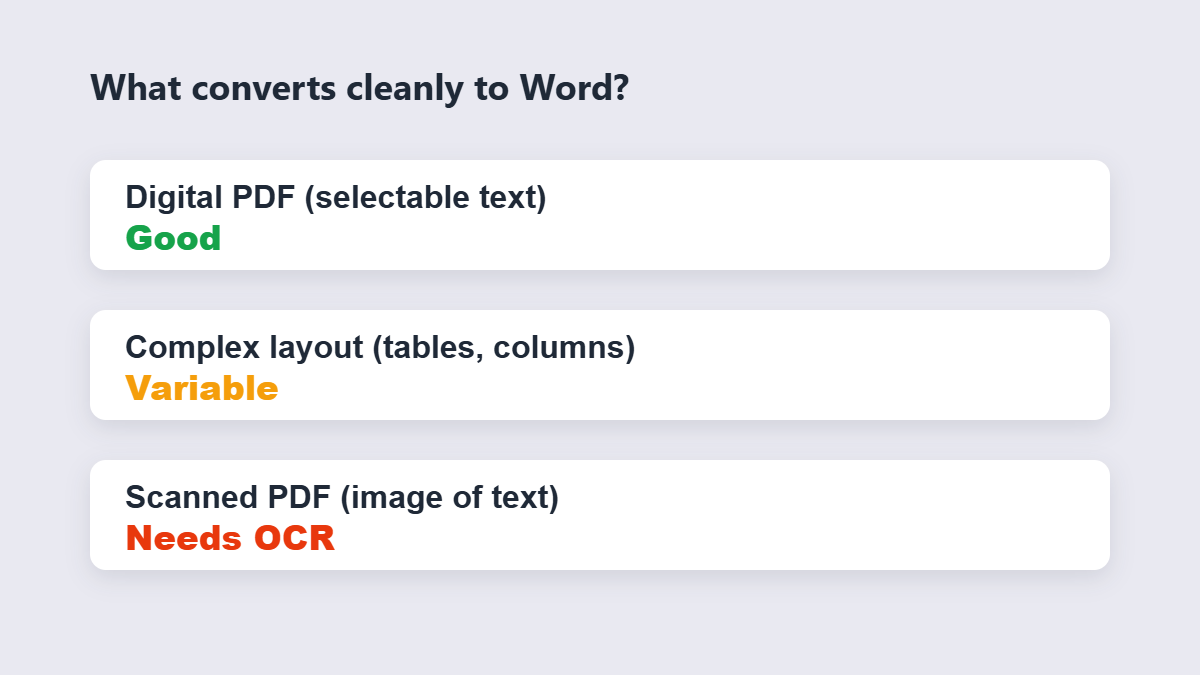
Conversion quality tracks the PDF’s origin. Use this as a triage list:
| PDF type | Conversion outlook | Notes |
|---|---|---|
| Digital PDF (selectable text, simple layout) | Good | Reports, letters, invoices convert with minor touch-ups |
| Complex layout (multi-column, heavy tables) | Variable | Text comes through; layout reconstruction needs manual fixing |
| Scanned PDF (image of text) | Poor without OCR | There’s no text to convert — you need OCR, and expect errors |
The honest workflow for PDF→Word: convert, then open the DOCX next to the original and fix what the reconstruction got wrong — usually spacing, occasionally a table. Ten minutes for a typical report. Anyone promising pixel-perfect conversion of a complex PDF is selling something.
Two Worked Examples
Direction one: a freelancer finishes a 6-page proposal in Word. Converting to PDF takes seconds and freezes the design — the client sees the exact fonts and spacing regardless of what’s installed. Sending the .docx instead risks an accident: one accidental edit, one reflowed page on a machine without the right font, and the proposal they signed isn’t the proposal you wrote.
Direction two: the same freelancer gets an old brief as a PDF and needs to update three numbers in it. PDF to Word converts the text cleanly — it was a digital PDF with selectable text — and five minutes of spacing fixes later, the edits are done and the document goes out as a fresh PDF again. Round trip complete, no retyping.
Scanned PDFs Are a Different Animal
A scanned page is a photograph of text. There’s no text layer to extract — converters either fail gracefully or run OCR (optical character recognition) to re-type the page. OCR has improved enormously, but it still mangles tables, reads over decorative fonts, and inserts believable-but-wrong characters. For a one-page scan, converting and proofreading beats re-typing. For a 200-page scan, re-typing the key sections is often genuinely faster than proofreading OCR output.
Also worth knowing: PDF→Word needs browser-based processing on 11zon — a browser can’t do that level of document parsing. Your file travels over an encrypted connection and is deleted right after conversion. Word→PDF works the same way, for the same reason. Most tool pages won’t tell you this; it’s the difference between a privacy claim and a privacy fact.
The Privacy Question Nobody Answers
Here’s the irony of the converter market: the tools shouting loudest about security are usually uploading your file to a server. That’s often necessary — heavy document parsing is beyond what JavaScript in a browser can do. The honest question isn’t “does it upload?” but “what happens after the upload?” Look for: encryption in transit (any reputable site), a stated deletion window, and no reuse of your content. If a tool’s FAQ won’t say where the file goes, that’s your answer.
A Note on Batch Conversions
Converting a folder of Word files? Convert them one at a time and merge the PDFs if a single file is the goal — merging after converting keeps every document’s page setup intact. The reverse order (merging DOCX files first, somehow) isn’t a thing; Word files aren’t mergeable containers. And if the batch includes Excel or PowerPoint files, convert each with its own tool — Excel to PDF and PowerPoint to PDF handle those formats’ quirks properly, then merge everything at the end.
FAQ
How do I convert a Word document to PDF for free?
Add the .doc or .docx to an online converter and download the PDF. If Word is installed, File → Save As → PDF also works — the online tool is for phones and Word-less machines.
How do I convert a PDF back to Word?
Use a PDF-to-Word converter for a text-based PDF, then fix the layout in Word. Scanned PDFs need OCR first, and expect to proofread the result.
Why does my converted Word document look different from the PDF?
PDF stores positioned glyphs, not document structure — the converter had to reconstruct paragraphs and tables from coordinates. Simple layouts reconstruct well; complex ones need manual cleanup.
Can I edit a scanned PDF?
Only through OCR, which re-types the page from the image. It works but introduces errors — proofread anything important, especially numbers.
Is it safe to convert confidential documents online?
Ask where processing happens and what happens to the file after. Reputable converters use HTTPS and delete files shortly after processing; if the site won’t say, pick one that will.
Which direction should I send files in?
Send PDF when the reader only needs to view or print. Send Word only when the recipient genuinely needs to edit — that’s what the format is for.
