You need a smaller PDF — the portal caps uploads at 5 MB, the email bounced at 25 MB, or the form simply refused your 40 MB scan. Compression fixes this, but the internet is full of tools promising “no quality loss” that deliver blurry soup. Here’s how to compress a PDF properly, with honest expectations about what compression can and can’t do.
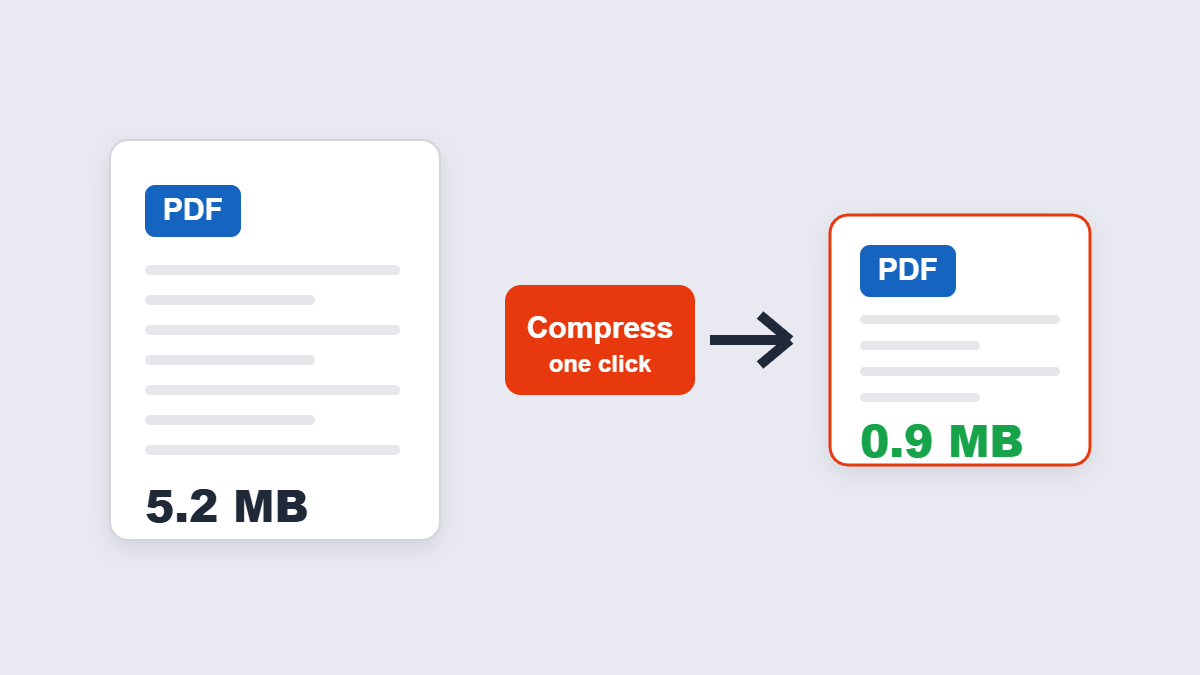
Table of Contents
- Why is your PDF so big?
- How to compress a PDF step by step
- Realistic size expectations
- The truth about “no quality loss”
- When compression isn’t the answer
- FAQ
Why Is Your PDF So Big?
A PDF’s weight comes almost entirely from its images. A 40 MB scanned contract is 40 MB of page photographs — the text itself might account for a few kilobytes. Three culprits, in order of frequency:
- Oversized scans. Phone scanners and copiers default to 300–600 DPI with minimal compression. Great for archiving, terrible for emailing.
- Uncompressed or losslessly-packed images. Screenshots pasted into documents often carry huge PNG payloads.
- Embedded fonts and bloat. Full font families, old PDF versions and duplicate objects. This is the smallest slice — usually 5–20% of the file.
Knowing the cause tells you what compression can achieve. Stripping bloat can’t fix a 40 MB photo scan; re-encoding those photos can.
How to Compress a PDF Step by Step
- Open a compression tool — the 11zon Compress PDF tool runs in your browser and never uploads the file.
- Add the PDF. Drag it in or browse for it.
- Let the tool work. It strips redundant objects and re-encodes oversized images at a sensible quality level.
- Compare the sizes. Check the before/after — and open the result before you delete anything.
- Download and inspect. Zoom into the worst-looking page. If text is still crisp and photos acceptable, you’re done.
If the result is still too big, the remaining weight is in the images — and you’re into the trade-off zone described below.
A real example: a 38 MB scan of a 12-page contract compressed to 4 MB (a 89% drop) at settings where the signature lines stayed perfectly legible. The same tool on a lean 900 KB text-only invoice brought it to 720 KB — 20%, and that’s expected, because there was almost nothing to remove. Same tool, honest different outcomes.
What Compression Tools Actually Do
Peeking under the hood helps you predict results. A compressor works through, roughly: removing duplicate objects and unused resources; re-packing internal data streams with better compression; stripping metadata and leftover editor data; and re-encoding images at lower quality or resolution. The first three are quick, lossless and modest. The last one is where files actually get small.
This is also why two tools can give different results on the same file — the difference is almost always how aggressively each one re-encodes images.
Realistic Size Expectations
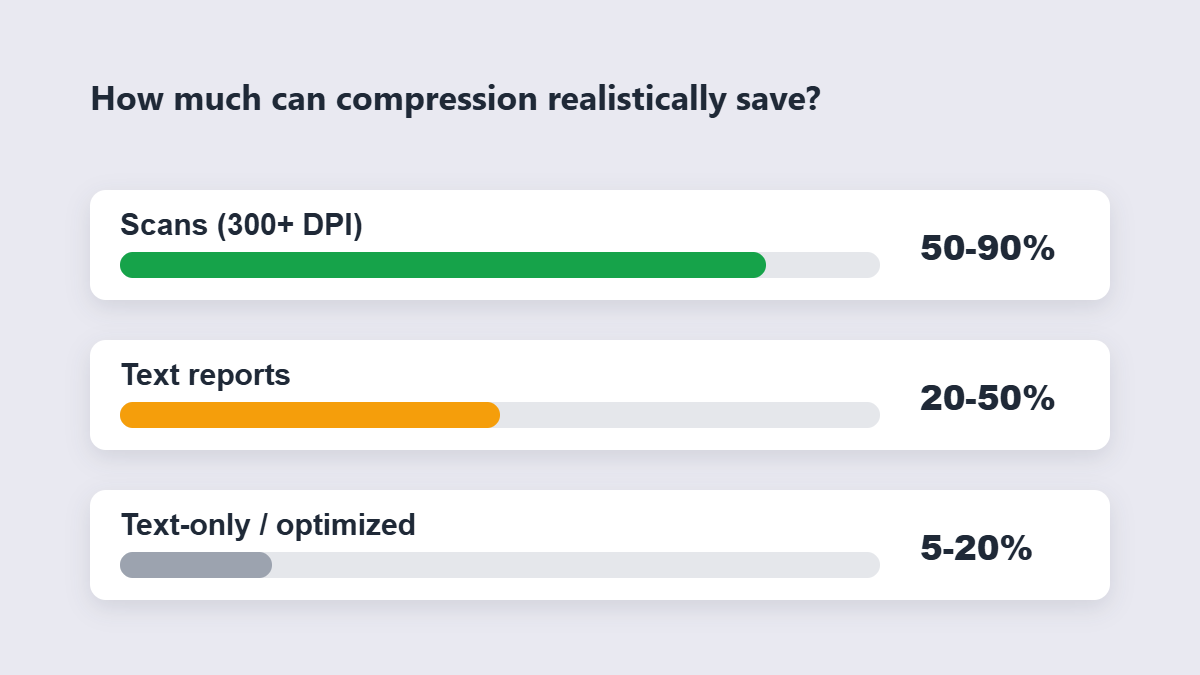
“Compress my PDF” isn’t one operation; the payoff depends entirely on what’s inside. Independent testing and tool documentation line up on these ranges:
| PDF type | Typical reduction | Why |
|---|---|---|
| Photo-heavy scans (300+ DPI) | 50–90% | Images re-encoded; DPI downsampling cuts image data ~75% alone (300→150 DPI) |
| Text reports with a few charts | 20–50% | Some image headroom plus embedded bloat |
| Already-optimized or text-only PDFs | 5–20% | Only stream cleanup and metadata stripping remain |
The last row is where disappointed users live. A text-only PDF that’s already lean has almost nothing to remove. If a tool claims it halved that file, be suspicious of what it threw away.
The Truth About “No Quality Loss”
Here’s the contrarian bit: most “compress without losing quality” claims are marketing. Compression techniques fall into two families, and only one of them is truly lossless:
- Lossless cleanup (removing duplicate objects, re-packing streams): genuinely no quality change — and genuinely small gains, 5–20%.
- Image re-encoding (JPEG at lower quality, DPI downsampling): where the big wins live, and where quality is technically reduced. Done well, the loss is invisible on screen. Done aggressively, headings go fuzzy and photos band.
So the honest framing isn’t “no quality loss” — it’s “no noticeable loss when done at sane settings.” A 150 DPI scan prints acceptably and looks identical on screen; a 72 DPI version of the same page starts to crumble the moment you zoom.
Practical rule: compress once at a moderate level and inspect. If it’s acceptable and still too big, compress the original again at a stronger setting — compressing an already-compressed file stacks artifacts.
When Compression Isn’t the Answer
Sometimes the fix isn’t shrinking the PDF at all:
| Situation | Better move |
|---|---|
| 40 pages but you only need 5 | Split the PDF and send the part that matters |
| Multiple files attached together | Merge first, compress once — better than compressing each separately |
| Photos of pages (not a real PDF) | Re-scan or convert images to PDF at a sane resolution, then compress |
| Still over the limit after everything | Ask whether a download link works instead of an attachment |
And if the PDF must meet exact specs — a 2 MB ceiling for a job application, say — compress, check the size, and repeat on the original until you land under it. Two passes at moderate strength usually beat one aggressive pass.
The Common Upload Limits Worth Knowing
Half the reason people compress is a specific ceiling, so here are the numbers people actually hit: Gmail and most Outlook.com accounts accept attachments up to 25 MB; many government and job portals cap uploads at 2–10 MB per file; and messaging apps like WhatsApp document sharing sits at higher caps but degrades quality on some types. Knowing the target changes the strategy — a 5 MB ceiling needs one moderate pass, a 2 MB ceiling on a scanned contract may need a re-scan at lower DPI instead of heroic compression.
One more thing worth saying: if the recipient is a person rather than a form, a file-sharing link often beats shrinking the file at all. Compression is for when the PDF must travel inside an email or form.
FAQ
How do I make a PDF smaller for free?
Open a browser-based compressor, add the file, and download the result. The 11zon tool runs locally in your browser — no upload, no account, no watermark.
How much smaller will my PDF get?
Photo-heavy scans typically drop 50–90%; ordinary text reports 20–50%; already-optimized files 5–20%. Anyone promising big gains on a lean text PDF is cutting corners you’ll see.
Does compressing a PDF lower its quality?
Lossless cleanup doesn’t. Image re-encoding technically does — at sane settings the difference is invisible on screen, which is why “no noticeable loss” is the honest phrase.
Why is my compressed PDF still too big?
The remaining weight is in images at high resolution. Compress the original again at a stronger setting, or reconsider whether all pages need to travel — splitting off the essential pages is often the faster win.
Can I compress a PDF on my phone?
Yes. Browser-based compression works in mobile Chrome and Safari with no app to install — compress and download straight to your phone.
Is compressing a PDF safe for sensitive documents?
With browser-based tools, yes — the file never leaves your device. Upload-based services also use HTTPS, but your file does touch their servers; check the retention policy for anything confidential.
