Image files are the silent weight of the internet — and of every email outbox. A phone photo weighs 3–6 MB; a web page needs it under 200 KB. Reducing image file size is therefore less about one trick and more about choosing the right combination of format, dimensions and quality. Here’s the complete picture, minus the myths.
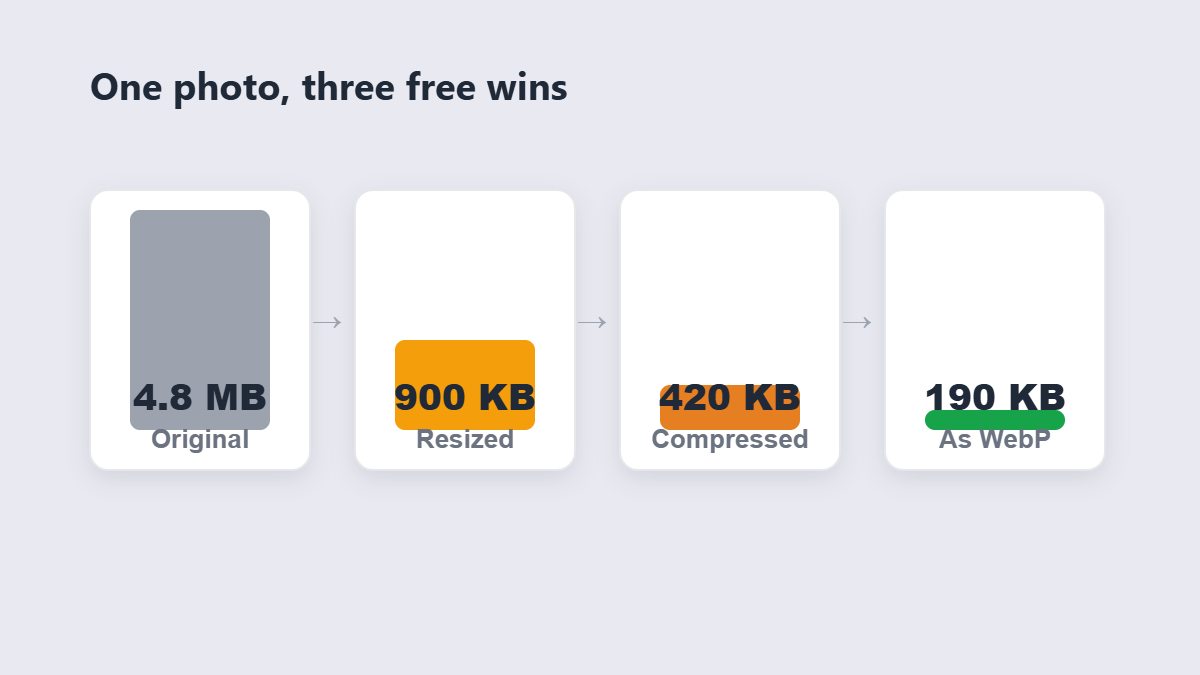
Table of Contents
- Where the weight actually lives
- Four ways to shrink an image (ranked)
- JPG vs PNG vs WebP: pick the right format
- The common limits you’re probably hitting
- Two mistakes that ruin images
- FAQ
Where the Weight Actually Lives
An image file’s size comes from three things, in this order of impact:
- Dimensions. A 4000×3000 photo has 12 million pixels; halving each side cuts the pixel count by 75%. Nothing else comes close.
- Compression quality. JPG quality 95 stores far more detail than screens can show. Quality 80 usually looks identical and weighs a fraction.
- Metadata. Camera model, GPS coordinates, thumbnails — kilobytes of baggage you can strip with zero visual change.
Most people attack #2 first because sliders feel productive. Do #1 and #3 first; they’re free wins.
Four Ways to Shrink an Image (Ranked by Bang for Buck)
| Method | Typical saving | Visual cost | Tool |
|---|---|---|---|
| Resize dimensions to actual use | Up to 90%+ if oversized | None (if done right) | Resize tool |
| Re-encode at sane quality | 50–80% | None visible on screen | Compress tool |
| Convert format (→WebP) | 25–35% further | None | WebP converter |
| Strip metadata alone | 5–15% | Zero | EXIF remover |
Stack the first two and a 5 MB phone photo becomes a 300 KB web asset that looks the same. Stack all four and it’s under 200 KB.
JPG vs PNG vs WebP: Pick the Right Format First
Half of all “my image is huge” problems are a format mismatch:
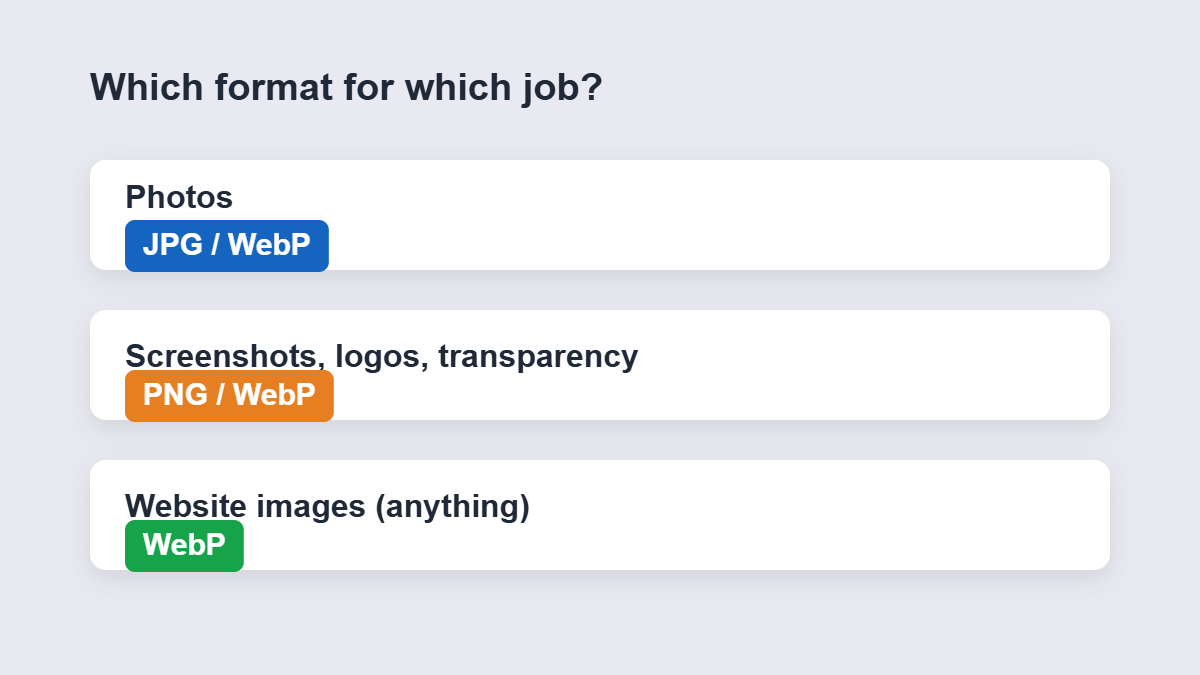
- JPG is for photographs. It’s lossy and brilliant at them — every camera and phone defaults to it for a reason. It cannot store transparency; see-through areas turn white.
- PNG is for screenshots, logos and anything with sharp edges or transparency. It’s lossless, which also means a photo saved as PNG weighs several times more than the same photo as JPG. If your PNG is a photo, converting it to JPG is the single biggest saving available.
- WebP is the modern all-rounder: 25–35% smaller than JPG at the same quality, transparency supported, universally supported by browsers since 2020. For website images it’s the default answer; every browser that matters renders it.
The quick diagnostic: photo → JPG or WebP. Sharp graphics, text, transparency → PNG or WebP. That’s most decisions made.
The Common Limits You’re Probably Hitting
Image compression usually serves a specific ceiling. The frequent ones: email attachments at 25 MB (Gmail, Outlook), job and visa portals that reject photos over 500 KB–2 MB, passport/ID upload forms with strict dimension requirements, and marketplace listing limits. For forms with a hard KB cap, compress, check the size, and re-compress from the original if needed — each compression pass on an already-compressed file stacks softness.
If the file is destined for a website rather than a form, stop optimizing at “indistinguishable on screen” and spend the remaining effort on serving it as WebP at the right dimensions. That’s the order that actually moves page speed.
A Worked Example: 4.8 MB to 190 KB
Here’s the full stack on a real-world case — a phone photo meant for a website’s blog post. The original: 4.8 MB, 4032×3024 pixels, JPEG quality 92 with full EXIF. Step one: resize to the actual display width of 1400 pixels — the file drops to 900 KB because 92% of the pixels just left. Step two: re-encode at quality 80 — 420 KB, visually identical. Step three: convert to WebP — 190 KB. Total: a 96% reduction with no difference anyone could see side by side.
The same photo emailed instead of published? Skip the WebP step, compress once, and it’s a 400 KB attachment that sails under every limit. One source image, two destinations, no heroics.
Two Mistakes That Ruin Images
Saving over the original. Every JPG save re-compresses the whole image — generation loss accumulates like photocopies. Keep the original untouched, always export copies, and compress from the master each time.
Upscaling after downsizing. Resizing an image larger than its source pixels produces blur no tool can undo. Shrink freely; enlarge rarely and only with the right tool. When a form demands exact pixel dimensions, resize deliberately with the aspect ratio locked — don’t drag corners in a random editor.
And a privacy note most people miss: phone photos carry GPS coordinates by default. Before uploading anything publicly, strip that metadata — it takes seconds and removes your location from the file entirely.
Screenshots Deserve a Mention
Photos follow the JPG/WebP playbook, but screenshots are the opposite case: sharp text, flat colors, no gradients. Saving a screenshot as JPG smears the text edges — PNG or WebP is correct, and because screenshots compress losslessly to small sizes anyway, they rarely need aggressive optimization. If a screenshot is enormous, the culprit is almost always its dimensions: a 4K full-screen capture pasted into a 700-pixel-wide blog slot is carrying five times the pixels it needs. Resize it, and the problem solves itself.
FAQ
How do I reduce an image’s file size for free?
Run it through a browser-based compressor — 50–80% smaller is normal for phone photos, with no visible difference on screen. The 11zon tool processes the file locally; nothing uploads.
How much smaller will my JPG get?
Camera photos typically compress 50–80% at screen-identical quality. Already-optimized images shrink less — there’s less fat to trim.
Why is my PNG so much bigger than a JPG?
PNG stores every pixel losslessly — perfect for sharp graphics, wasteful for photos. Convert photo-PNGs to JPG and watch them shrink several-fold.
Should I use WebP for my website?
Yes. It’s 25–35% lighter than JPG at the same quality and every current browser supports it. Convert once and the savings repeat on every page view.
Does resizing an image lower its quality?
Downsizing keeps images sharp — you’re removing pixels, not adding them. Enlarging softens, because there’s no real detail to add.
Is it safe to compress personal photos online?
With browser-based tools, yes — the photo never leaves your device. It’s also the right moment to strip GPS metadata before sharing publicly.
