Paper documents come with margins because paper is a physical thing. When that document becomes a PDF headed for a screen — an e-reader, a phone, a slide — those margins are just dead space. Cropping a PDF trims them away so the content fills the space it actually gets. Here’s how to do it without cutting off anything you need.
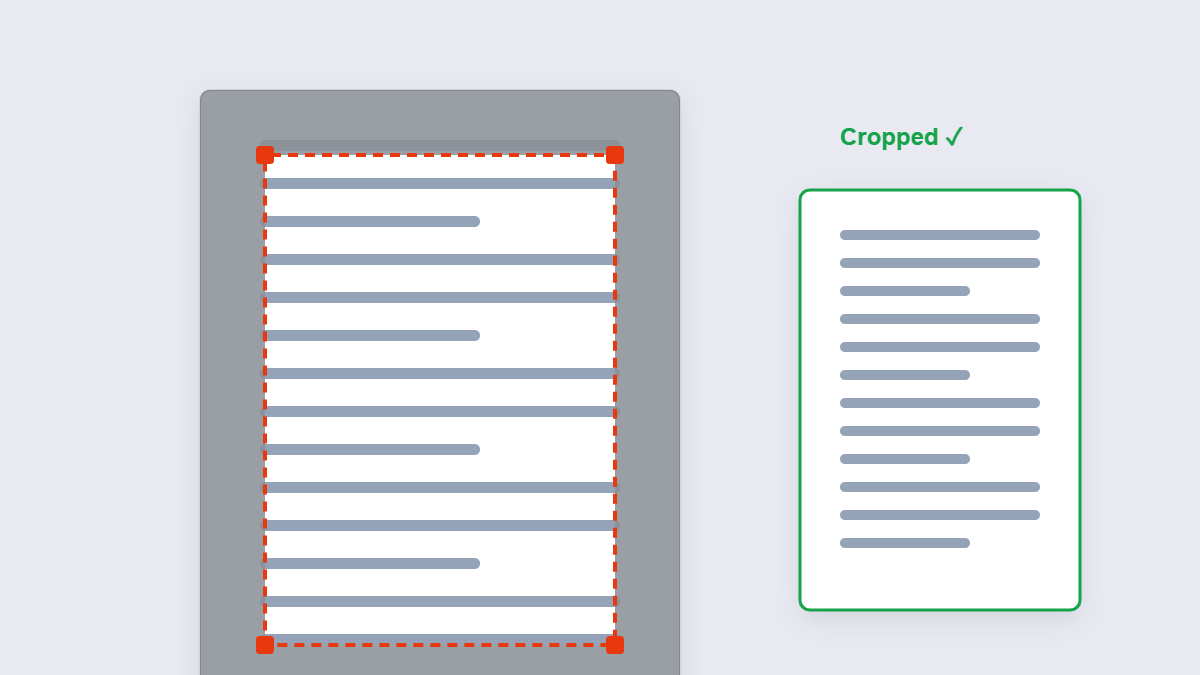
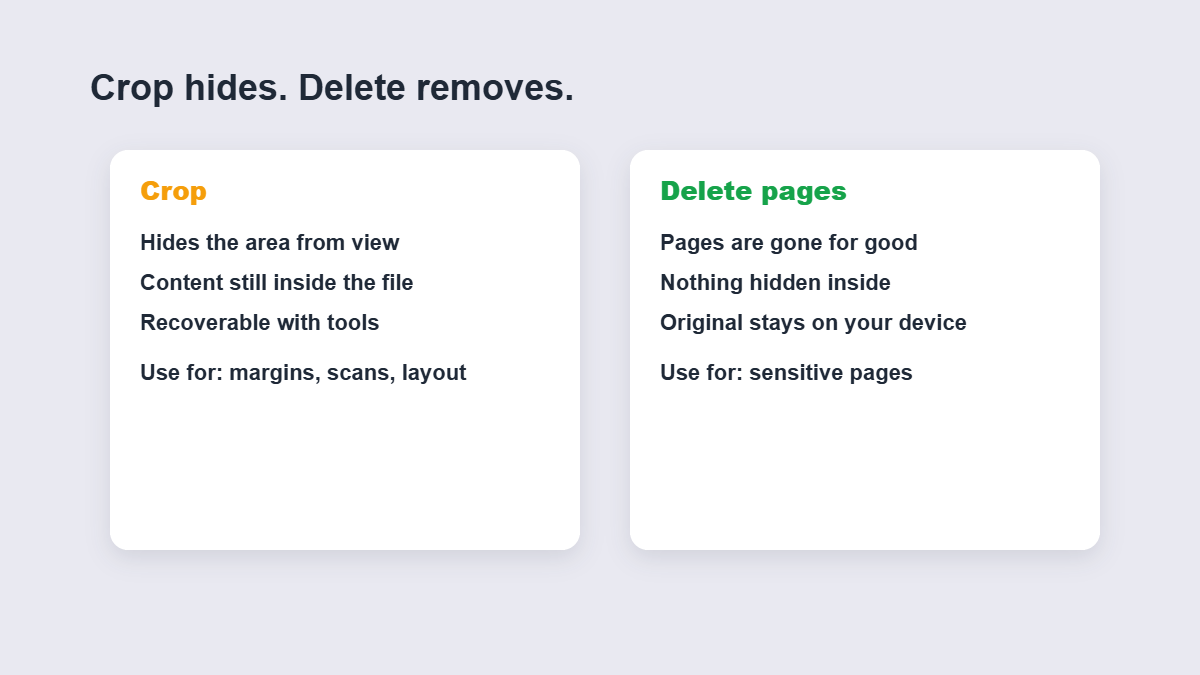
Table of Contents
- Why crop a PDF?
- How to crop step by step
- One page or the whole document?
- What cropping does and doesn’t change
- Cropping vs resizing vs page size
- FAQ
Why Crop a PDF?
Four jobs cropping does regularly: trimming scanned margins so text fills e-reader screens comfortably, cutting off scan artifacts (black edges, stray marks, the scanner’s shadow), tightening a slide or certificate for cleaner embedding in a report, and reshaping pages so two-up printing wastes less paper. In every case the goal is the same — the content, with the emptiness removed.
How to Crop Step by Step
- Add the PDF to the Crop PDF tool.
- Drag the crop box over the part of the page you want to keep — or trim the margins evenly on all sides.
- Apply to one page or the whole document.
- Download the cropped copy — your original file stays untouched.
Always eyeball the result before sending it anywhere: the classic cropping accident is a page number or header sliced off because the box sat a few millimeters too high.
One Page or the Whole Document?
| Job | Scope | Why |
|---|---|---|
| Scanned book with identical margins | Whole document | One crop box fits every page |
| Landscape chart on page 9 of a portrait report | Just that page | Different content, different box |
| Fax-style black edges on every scan | Whole document | The artifact appears in the same place each time |
Mixed documents are where scope discipline matters: applying one crop box to pages with different layouts will eat content somewhere. Crop per-section instead.
What Cropping Does and Doesn’t Change
Cropping changes the visible page area — it doesn’t re-render, compress or degrade anything. Text stays selectable and sharp because cropping doesn’t touch the content, only the window through which the page is viewed. File size stays roughly the same too: the trimmed content still exists in the file, it’s just outside the visible area.
That last point has a privacy angle people forget: cropping HIDES content, it doesn’t DELETE it. Trim a page to hide a paragraph and the paragraph is still in the file, recoverable with the right tools. For removing sensitive content, use the Delete Pages tool or redact properly — never crop.
Cropping vs Resizing vs Page Size
Three tools, three jobs: cropping cuts the page’s visible area down (content unchanged), resizing scales the content to new dimensions (everything shrinks or grows), and the page size tool re-formats pages to a standard like A4 or Letter (content re-laid-out). The everyday mistake is resizing when cropping was meant — you don’t want a smaller version of the whole page, you want the same page with less emptiness.
The E-Reader Trick Worth Knowing
The highest-value crop job most people will ever do: preparing a scanned book for an e-reader. Scanned books carry an inch of margin on every side, which on a six-inch e-reader screen shrinks the actual text to unreadable. Crop the margins to a sliver and the same page fills the screen — legible without zooming, on every page after one crop box. Do a final flip-through before committing: books often have pages that break the grid (maps, plates) and need their own box.
The Print-Saving Side Benefit
Cropping isn’t only for screens. Print a 40-page scanned report as-is and you’re printing a ring of white nothing around every page — more sheets, more toner, a fatter staple. Crop the margins to a few millimeters and the same document fits on 20–30% fewer pages in many cases, with the text actually larger on each sheet. For anything printed regularly — minutes, readings, recipes — a one-time crop keeps paying you back.
The One Crop Mistake That Costs Files
Cropping as a redaction shortcut. It looks right — the sensitive paragraph is gone from view — but the text remains inside the file, one unlock away from anyone who checks. It has leaked real documents. The hierarchy is simple: hide a corner of a scan? Crop. Remove content permanently? Delete the pages or rebuild the file. Never confuse the two when something sensitive is involved.
FAQ
How do I crop a PDF for free?
Add the PDF to a browser-based cropping tool, drag the box around the content you want to keep, and download. Free, no account, and the original file stays untouched.
Can I crop all pages of a PDF at once?
Yes — one crop box applied to the whole document works when every page shares the same layout and margins.
Does cropping reduce PDF quality?
No — cropping changes the visible area, not the content. Text stays sharp and selectable.
Is cropping safe for hiding sensitive information?
No — cropped content still exists inside the file. Use page deletion or proper redaction for anything sensitive.
Will the cropped PDF still be searchable?
Yes — cropping doesn’t touch the text layer, only the visible page area.
Is my PDF processed in your browser?
No. Browser-based cropping runs entirely on your device.
