Merging PDFs is the one file task almost everyone needs at some point — combining scanned pages, attaching one contract instead of five, or sending a single report instead of a folder of loose files. The good news: you can merge PDF files for free in under a minute, right in your browser, without creating an account anywhere.
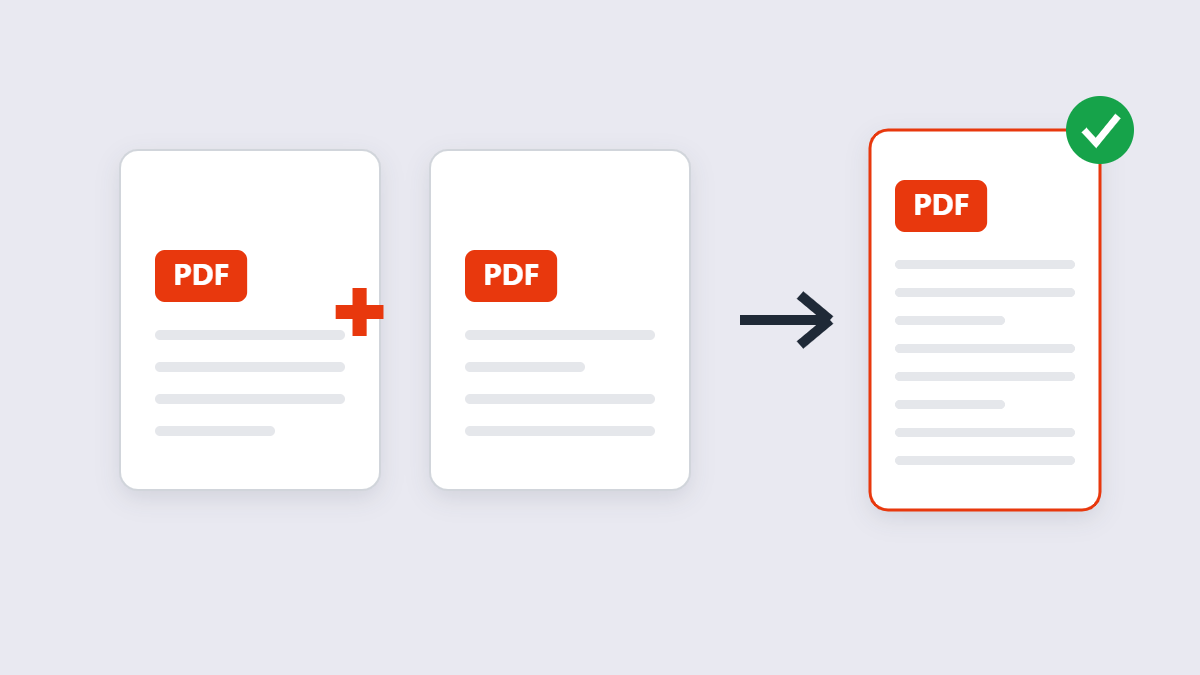
Table of Contents
- How to merge PDF files step by step
- Which online PDF merger should you use?
- Does merging reduce quality?
- Is it safe to merge PDFs online?
- Can you merge PDFs on a phone?
- Merge, split or compress?
- Common problems (and fixes)
- What to do after merging
- FAQ
How to Merge PDF Files Step by Step
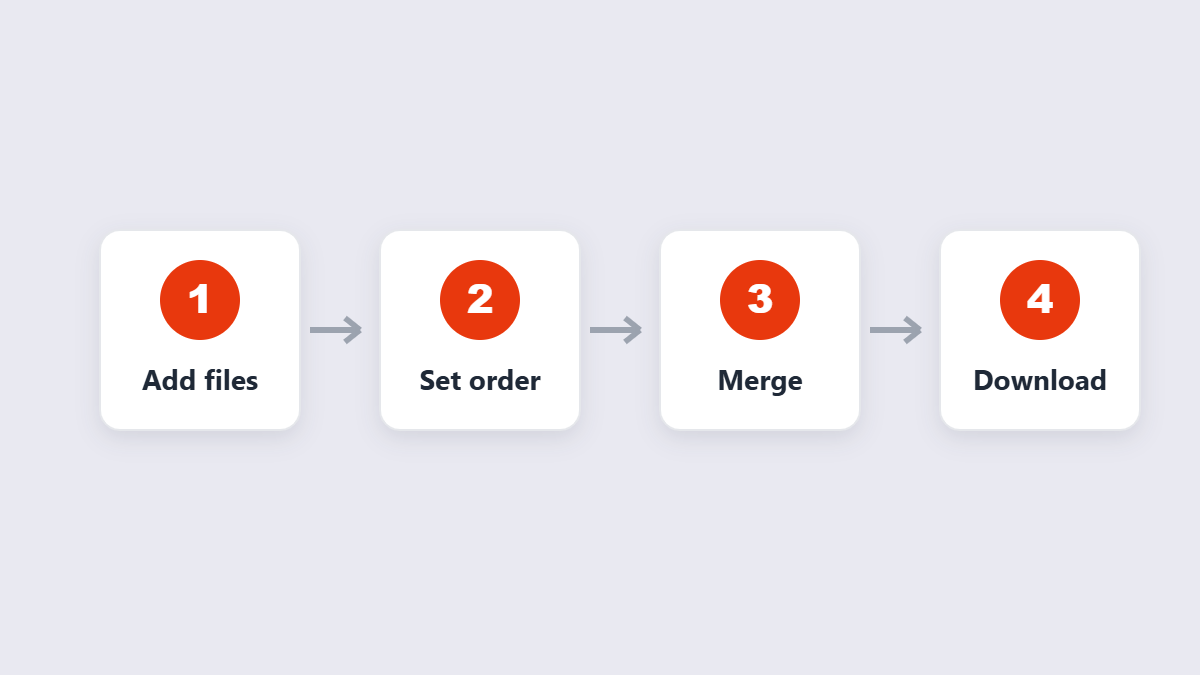
Every PDF merger works roughly the same way, so learn the flow once and you can use any of them:
- Add your files. Drag the PDFs into the tool or use the file picker. Two is the minimum; there’s no real maximum.
- Set the order. Drag the thumbnails until the sequence matches what you want readers to see.
- Merge. One click. The pages are stitched into a single document in your chosen order.
- Download. Save the combined PDF somewhere sensible — and keep your originals until you’ve checked the result.
That’s it. If the tool asks you to create an account for this, close the tab — plenty of tools don’t require one.
A worked example: you scanned a signed contract as three separate files — pages 1–4, pages 5–9 and the appendix. Add them in that order, glance at the thumbnails to confirm page 5 follows page 4, merge, and send the single PDF. Total time from “three loose scans” to “one attachment”: about forty seconds, most of it spent finding the files.
Merge, Split or Compress — Which One Do You Actually Need?
These three get confused constantly, and choosing wrong wastes a trip. Merging combines several PDFs into one. Splitting takes one PDF and pulls it apart into separate files — the exact opposite. Compressing changes neither: it shrinks one file’s size while keeping its pages together.
A quick sanity check before you start: if your problem is “too many files,” you want to merge. If it’s “one huge file where I only need a few pages,” split or delete pages instead. If it’s “the file is fine but too heavy to email,” compress. Doing them in the wrong order isn’t fatal — you can always run the output through another tool — but the right order saves a step.
Which Online PDF Merger Should You Use?
There are dozens of mergers, and most are fine. Where they differ is privacy and friction:
| Tool | Where files are processed | Sign-up needed | Standout trait |
|---|---|---|---|
| 11zon Merge PDF | In your browser | No | Files never leave your device; no watermark |
| Smallpdf | On their servers | No (for basic use) | Polished UI; files auto-deleted after 1 hour |
| Adobe Acrobat online | On Adobe servers | Free tier is limited | Brand trust; pushes subscription for heavy use |
| PDF24 | In your browser | No | No limits; desktop app also available |
My take: for most documents, a browser-based merger is the better default. The big brands imply you need their paid software for a task that takes four clicks — you usually don’t. Upload-based tools like Smallpdf are fine for non-sensitive files; their deletion policies are reasonable. But for contracts, ID scans or anything confidential, the tool that never uploads the file at all is simply the safer choice.
Does Merging Reduce Quality?
No — and this is worth understanding, because people avoid merging for the wrong reason. Merging doesn’t re-render or re-compress anything. The pages are copied into a new container in order. Text stays selectable, fonts stay embedded, scans stay sharp.
The one exception: if you merge and then run the output through a compress PDF tool, that step may re-encode images. Merging alone won’t.
Under the hood, a PDF is a container: pages, fonts, images and an index that says what goes where. Merging writes a new container, copies each page’s objects across untouched, and builds a new index in your chosen order. Nothing about the page content is decoded or redrawn — which is also why merging two 2 MB files gives you roughly a 4 MB file, not something smaller.
Is It Safe to Merge PDFs Online?
Depends entirely on where the processing happens:
- Browser-based tools (11zon, PDF24): your file is never transmitted. Safe for anything, including sensitive documents.
- Upload-based tools (Smallpdf, iLovePDF, Adobe): your file travels to their servers over HTTPS and is deleted after a retention period. Acceptable for everyday documents; think twice about tax papers, medical files or client contracts.
The tell is in the tool’s own FAQ. If a site can’t tell you plainly where processing happens, treat that as an answer.
Can You Merge PDFs on a Phone?
Yes — browser-based mergers work in mobile Safari and Chrome with nothing to install. Add files from your phone’s storage, reorder, merge, download. The downloaded file lands in your Downloads or Files app.
iPhone users: if your scans are HEIC images rather than PDFs, convert them first with an image to PDF tool, then merge the PDFs.
Common Problems (and Fixes)
| Problem | Usual cause | Fix |
|---|---|---|
| Pages in the wrong order | Files were added in the wrong sequence | Reorder thumbnails before merging — most tools can’t reorder after |
| Scanned pages sideways | Scanner orientation | Merge first, then fix pages with a rotate PDF tool |
| Merged file too big to email | Scans at full quality | Run the merged file through a compressor; Gmail’s limit is 25 MB |
| Mixed file types | Photos mixed with PDFs | Convert images to PDF first, then merge everything |
What to Do After Merging
The merged file is raw material. Three quick touches make it feel finished: add page numbers so printed copies stay in order, run a compression pass if you scanned at high quality, and — if the document is going to strangers — consider protecting it with a password. Each takes one more tool and under a minute.
Skip all three if the file is going straight into a system that just needs the pages. Not every document needs dressing up.
FAQ
How do I merge PDF files for free?
Open a browser-based merger like 11zon’s, drag in your PDFs, arrange the order, and click Merge. The combined file downloads instantly — no account, no watermark, no cost.
How many PDFs can I merge at once?
With browser-based tools, as many as your device can handle — twenty documents is routine. Very large batches just take a few seconds longer.
Can I merge PDF and image files together?
Not directly in most mergers. Convert the images to PDF first (an image-to-PDF tool handles this in seconds), then merge everything in one pass.
Is it safe to merge confidential documents online?
With browser-based tools, yes — the file never leaves your device, so there’s nothing stored anywhere. With upload-based tools, check their retention policy first.
Will the merged PDF be searchable?
If the source PDFs had selectable text, the merged copy keeps it. Merging copies pages as-is; it doesn’t strip or add text layers.
Do I need to install software to merge PDFs?
No. Browser tools handle it on Windows, Mac, Linux, Android and iOS. Desktop software only makes sense if you merge files offline regularly.
