Someone scans a five-page contract, sends it over, and two of the pages are lying on their side. You rotate them in your PDF viewer, everything looks fine — and then the recipient says the pages are sideways again. Here’s what’s actually happening, and how to fix rotated PDF pages so they stay fixed.
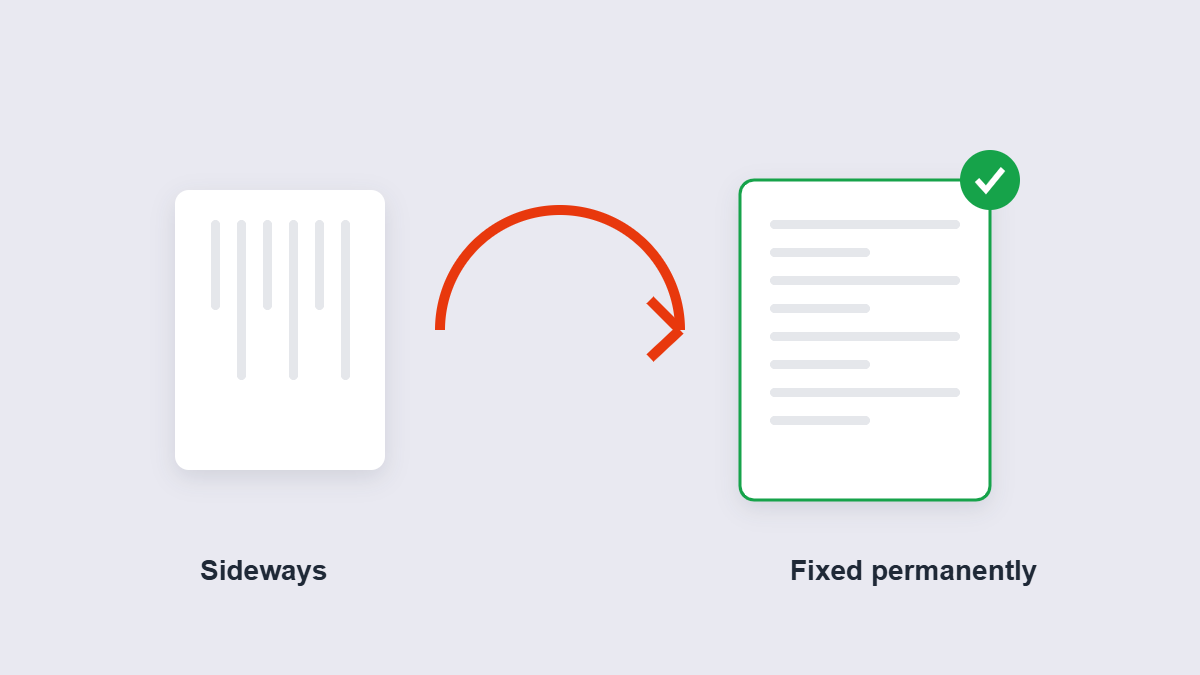
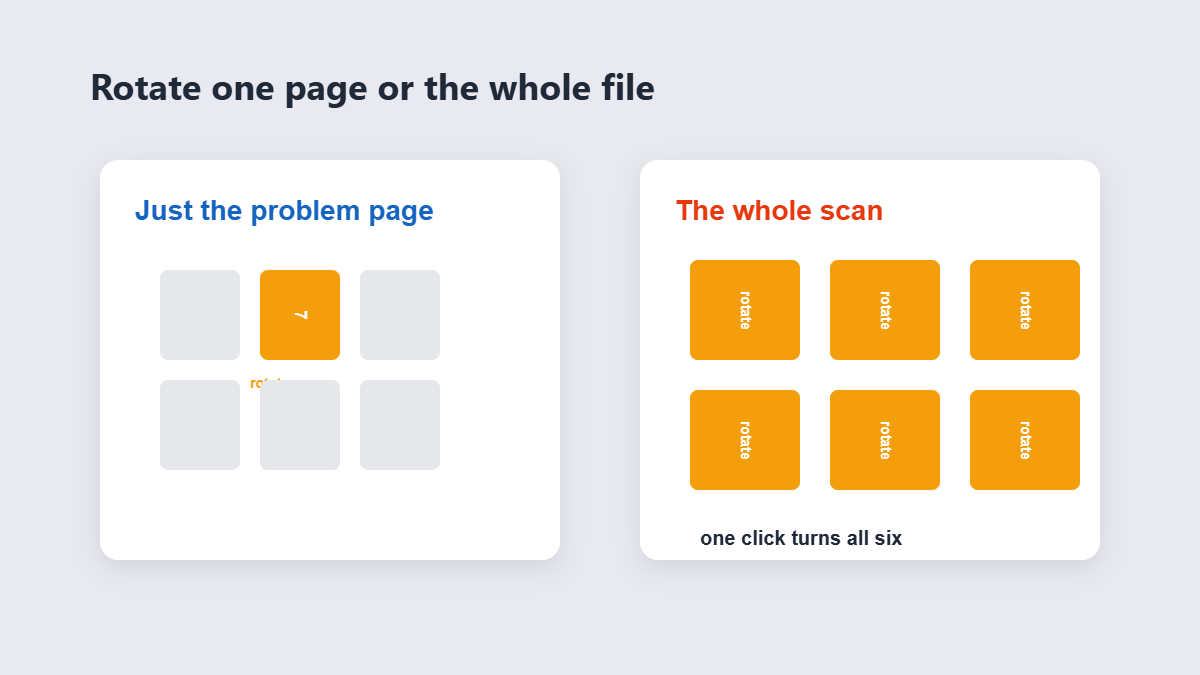
Table of Contents
- Why PDFs go sideways (and stay that way)
- How to rotate pages permanently
- Why viewer rotation doesn’t stick
- One page or the whole document?
- Does rotating change anything else?
- FAQ
Why PDFs Go Sideways (and Stay That Way)
Sideways pages almost always come from the scanner. A sheet fed sideways or placed wrong on the glass gets captured rotated — the scanner has no idea which way “up” is for your text. The second cause is sneakier: PDFs store orientation as a flag rather than by physically turning the page, and some apps and web viewers ignore or misread that flag. That’s why the same file looks fine in one viewer and sideways in another — the classic sign of a rotation-flag problem rather than genuinely rotated content.
How to Rotate Pages Permanently
- Add the PDF to the Rotate PDF tool.
- Pick the pages that need turning — one sideways page shouldn’t drag the whole document into rotation.
- Choose the direction — 90° clockwise or counter-clockwise, as many quarter-turns as needed.
- Save. The new orientation is baked into the file itself.
The test that matters: open the saved file on a different device than the one you fixed it on. If it’s upright there, it’s upright everywhere.
Why Viewer Rotation Doesn’t Stick
Most PDF viewers rotate the display only — the file on disk is untouched. Close the viewer and the rotation is gone, or worse, you send the file and the recipient’s viewer shows the original orientation. This is the single biggest source of “but I fixed it!” confusion.
A dedicated rotation tool writes the change into the document itself. If you want to be absolutely certain a stubborn file stays put, running the rotated file through a flatten pass afterwards re-renders the pages and bakes the orientation beyond any flag ambiguity — the nuclear option that even flag-ignoring viewers can’t get wrong.
One Page or the Whole Document?
| Situation | What to rotate | Why |
|---|---|---|
| Two sideways pages in a 20-page scan | Just those pages | Turning everything would break the upright pages |
| The entire scan fed sideways | All pages, one click | Whole-document rotation in a single pass |
| Landscape certificate in a portrait file | Nothing — it’s correct | Landscape pages are supposed to be sideways relative to the rest |
That last row trips people constantly: a landscape page inside a portrait document isn’t a bug. Rotate it “upright” and you’ve broken it.
The Directions, Decoded
Rotation buttons confuse people because “left” and “right” depend on which way the page currently faces. The simple version:
| What you see | What to press | Result |
|---|---|---|
| Page lying on its right side | Rotate 90° clockwise | Upright |
| Page lying on its left side | Rotate 90° counter-clockwise | Upright |
| Page completely upside down | Either 90° button twice, or 180° once | Upright |
Preview before saving — the tool shows the result, and one extra click beats re-doing the whole file.
Scans vs Digital Pages
Rotation behaves the same for both, but the causes differ. Scanned pages are physically captured sideways — the fix is real rotation. Digital pages (exported from Word, for example) sometimes carry a wrong orientation flag — the fix is the same rotation tool rewriting the flag, which is why a proper tool fixes both cases with one workflow. What rotation can’t fix is a crooked scan: a page fed through at a slight angle stays crooked after rotation, because skew is a different problem from orientation. For those, re-scanning straight is the only clean fix.
The Phone-Photo Problem
A cousin of the sideways scan: photographs of documents. Someone “scans” a page by photographing it, and the result arrives rotated, skewed, with shadows at the edges. Rotation fixes the orientation part. For the rest, the Image to PDF tool re-packages phone photos as proper PDF pages after you’ve cleaned them up — a better starting point than a rotated photo of a photo.
Does Rotating Change Anything Else?
Rotation changes orientation and nothing else. Text stays selectable, image quality is untouched, file size barely moves — the pages aren’t re-rendered, just re-oriented. One caveat worth knowing: if the PDF’s pages were rotated by flag originally (not physically), some primitive viewers already disagreed about the orientation before you touched anything. After a proper rotation tool rewrites the file, all viewers finally agree — which is exactly what you wanted all along.
After Rotating: Worth Checking
Rotation is usually one step in preparing a scan. Two quick follow-ups finish the job: run the page numbering tool so the fixed document reads like a proper file, and if it’s headed to someone by email, a compression pass keeps scans at sensible sizes. Ten extra seconds, and the document arrives looking like someone competent handled it — because someone did.
FAQ
How do I permanently rotate a PDF for free?
Add the PDF to a rotation tool, turn the pages, and save the file. The orientation is written into the document itself — free, no account, and browser-based tools do it without uploading anything.
Why is my scanned PDF sideways?
The sheets were fed into the scanner sideways or upside down — scanners don’t know which way your text faces. Rotate the affected pages with a tool that saves the change permanently.
Why does my PDF look right in one app and sideways in another?
That’s a rotation-flag problem: the orientation is stored as metadata some viewers ignore. A proper rotation tool rewrites the pages so every viewer agrees.
Can I rotate just one page out of many?
Yes — select that page specifically and turn only it. The rest of the document keeps its orientation.
Does rotating a PDF reduce quality?
No. Rotation only changes orientation — text, images and layout are untouched.
Can I rotate a PDF on my phone?
Yes. Browser-based rotation works in mobile Chrome and Safari — fix the file and save it straight back to your phone.
