A 60-page report where you need five pages. A contract with a stray blank page. A scan with three pages of someone else’s document accidentally included. Deleting PDF pages is the fastest of all PDF operations — click, remove, download — but a couple of habits separate a clean result from a confusing one.
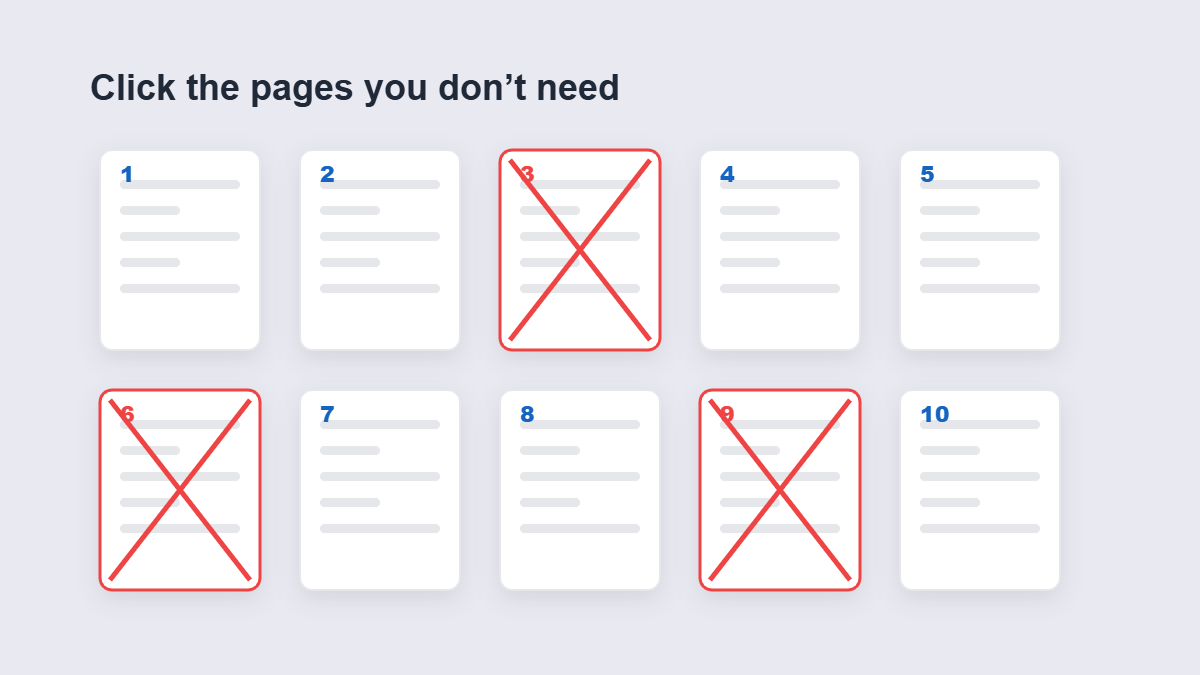
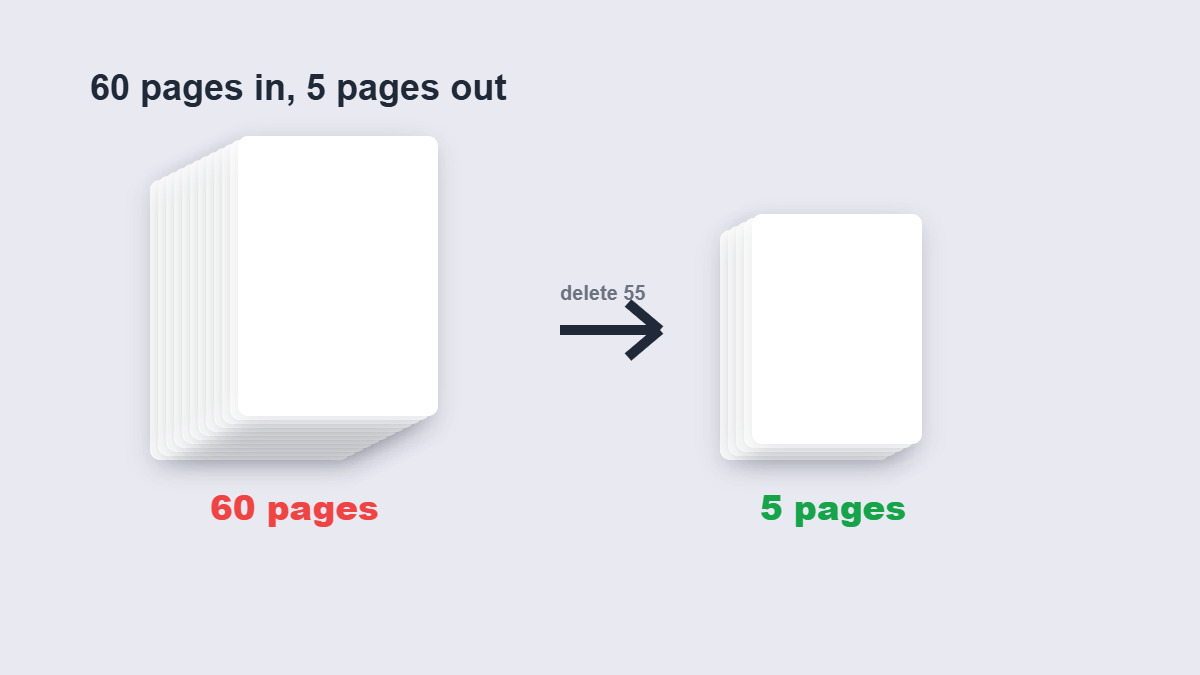
Table of Contents
- How to delete pages step by step
- Delete, or extract what you need?
- The page-numbering consequence
- Can deleted pages come back?
- Deleting pages ≠ redacting content
- FAQ
How to Delete Pages Step by Step
- Add the PDF to the Delete Pages tool.
- Click the thumbnails of every page you want gone — blanks, old versions, pages meant for someone else.
- Delete. The remaining pages rebuild into a new file.
- Download the trimmed PDF.
Flip through the result before sending it. Ten seconds of checking catches the wrong-page deletion that would otherwise be discovered by the recipient.
Delete, or Extract What You Need?
Two routes to the same destination, and the choice matters for big documents:
| Scenario | Better route | Why |
|---|---|---|
| 5 pages needed from a 60-page file | Extract the 5 | One small file, versus a 55-page file with deletions to verify |
| 60-page file minus 2 bad pages | Delete the 2 | Two clicks beat rebuilding 58 pages |
| Several separate outputs from one file | Extract each range | Deletion gives you one trimmed file, not many |
Rule of thumb: deleting the minority extracts the majority; extracting the minority deletes the majority. Pick whichever side is smaller.
The Page-Numbering Consequence
Delete page 4 of a 10-page document and old page 5 becomes new page 4 — but any page number printed on the page still says 5. For everyday internal files, nobody cares. For formal documents going to print or review, re-number the trimmed file with the page numbering tool so the printed numbers match reality — or at least note the ranges in the filename.
Can Deleted Pages Come Back?
Not from the trimmed file — deletion is permanent there. But this is why the workflow always ends with “download”: your original file still has every page. The trimmed PDF is a new document; the source on your device never changed. Keep the original until you’re certain the trimmed version is complete, and you have a permanent undo.
The Four Deletions Everyone Makes
In rough order of frequency: the blank page (scanner double-feeds and section-break artifacts), the old version (a revised page that made it into the final export), the confidential appendix (meant for someone else entirely), and the cover sheet the workflow auto-added. Every one of these is a two-click fix — and every one of them, left in place, has made someone look unprepared.
Deleting Pages ≠ Redacting Content
One warning with real consequences: deleting a page removes that page. Deleting a paragraph or a number on a kept page is redaction — a completely different operation that page deletion can’t do. If a page contains one sensitive line and lots of content you need, don’t delete the page and don’t crop it — that hides rather than removes. Rebuild or properly redact the page instead. People have leaked real data by confusing these.
A Worked Example
A consultant receives a 42-page tender pack, of which the relevant section is pages 8–19 plus a pricing annex at pages 33–36. Wrong approach: send all 42 pages with “see pages 8–19” in the email. Right approach: extract those ranges into one focused 17-page file, number it, send it. Total handling time: about two minutes. The difference a client remembers isn’t the speed — it’s receiving a document where every page mattered.
Deletion rarely travels alone
Most real jobs chain two or three operations: delete the junk pages, then reorder what’s left into a sensible flow, then number the pages so the result reads like a finished document. That chain — delete, reorder, number — turns a messy scan into a clean deliverable in about two minutes. Keeping the original file safe through all three steps means every stage is reversible.
FAQ
How do I remove pages from a PDF for free?
Add the PDF to a deletion tool, click the pages to remove, and download the trimmed copy. Free, no account, and browser-based tools process the file on your device.
Can I delete several pages at once?
Yes — select scattered singles or whole ranges and remove them all in one pass.
Do the remaining pages keep their quality?
Yes — pages are rebuilt, not re-rendered. Text, images and formatting are untouched.
Does my original file change?
No — the trimmed version is a new file. The original on your device keeps every page.
Why would a page be blank in my PDF?
Usually a scanned double-feed, a section break exported as its own page, or an “intentionally blank” page from the print original. Delete freely — unless the document is formal, where intentional blanks are sometimes deliberate.
Is my PDF processed in your browser?
No. The deletion runs entirely in your browser — the file never leaves your device.
