Someone sent you a 90-page PDF and you need exactly three pages of it. Or a scanner handed you one giant file that should really be twelve separate invoices. Both are split jobs — and both take under a minute with a browser tool, no software required.
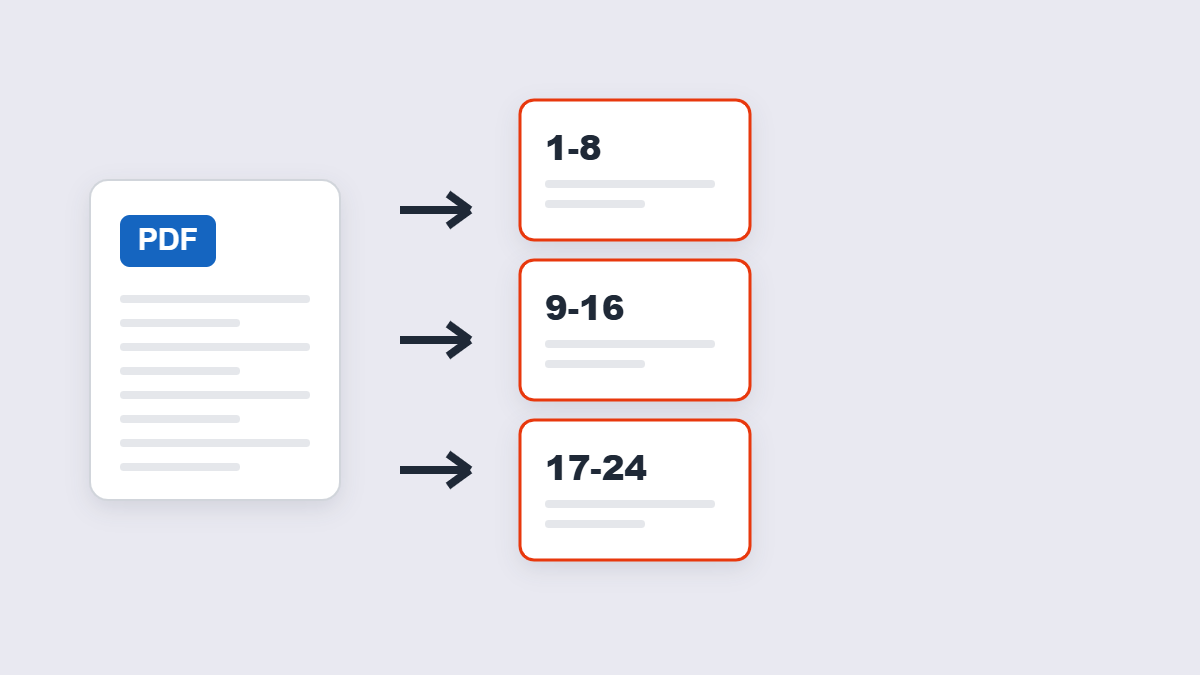
Table of Contents
- The three ways to split a PDF
- Step by step
- Which mode fits your job?
- Does splitting damage anything?
- Can you undo a split?
- FAQ
The Three Ways to Split a PDF
“Splitting” covers three different jobs, and tools treat them differently:
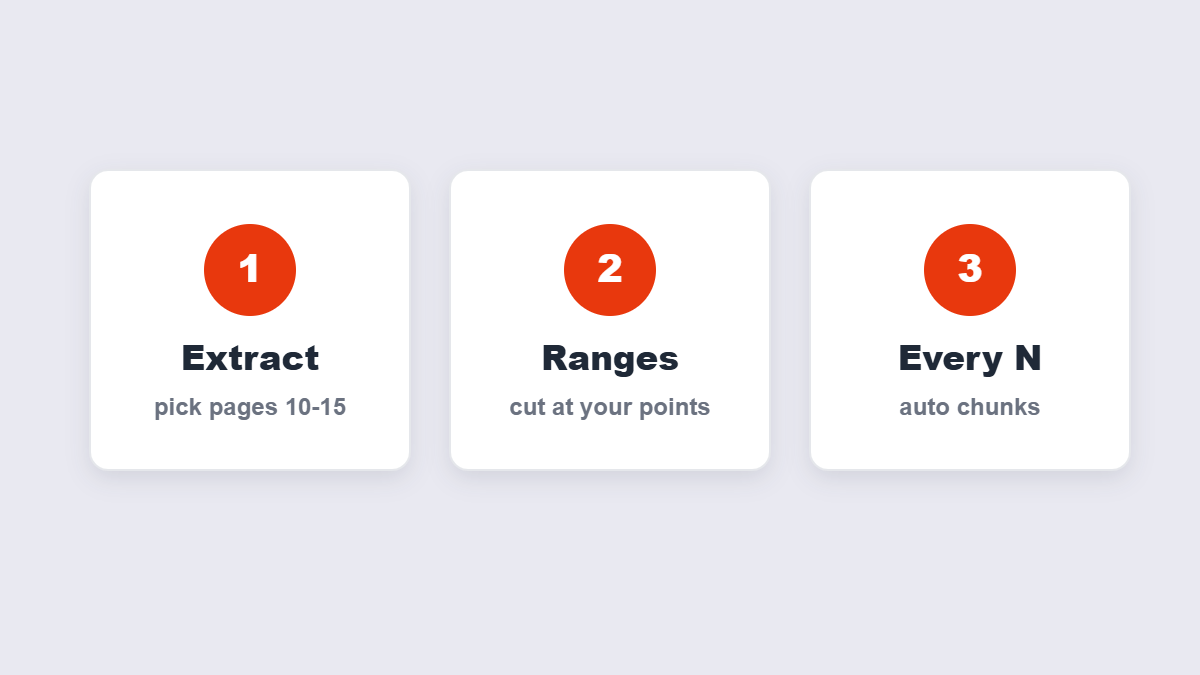
- Extract specific pages. Pull page 7, or a range like 10–15, into a new PDF. The classic “I only need the contract section” move.
- Split into separate files. Cut one document into several — either at page ranges you choose, or automatically every N pages.
- One file per page. Every page becomes its own PDF. Useful for per-page processing workflows.
The “every N pages” mode deserves a special mention because it’s the least known and the most useful for scans: a 60-page scan split every 10 pages becomes six tidy files with zero manual clicking.
Step by Step
- Add the PDF to a splitter — the 11zon tool processes it in your browser, so nothing is uploaded.
- Choose your mode: pick the pages or ranges to extract, or set an auto-split interval.
- Split. The pieces are built in your browser.
- Download the results — individually or all at once.
Worked example: an audit pack arrives as one 48-page PDF. The summary you actually need lives on pages 2–5, and one exhibit on page 31. Extract 2–5 as one file, extract 31 as another, and you’ve gone from “scrolling through 48 pages” to two focused documents you can forward separately.
Second example, the reverse direction: a receipt scanner dumped 214 mixed receipts into one file. Instead of hand-picking ranges, splitting every 25 pages produced nine working chunks — small enough that each opens instantly, and easy to hand to different people for reconciliation.
Which Mode Fits Your Job?
| Your situation | Mode to use | Result |
|---|---|---|
| “I need pages 10–15 only” | Extract range | One small PDF with just those pages |
| “Split this scan into chapters” | Split by ranges | Several PDFs at your chosen cut points |
| “This should be one file per client” | Every N pages | Automatic even chunks — no manual picking |
| “Just delete the junk pages” | None — use a page deleter | One cleaned file, no splitting needed |
That last row matters: splitting isn’t always the right tool. If you want one file without certain pages, deleting pages is the cleaner operation — splitting then re-merging is just a longer route to the same place.
Splitting Sensitive Documents
Splitting is disproportionately a confidential-document job: the HR pack where you need one employee’s section, the legal bundle where one exhibit matters. That’s exactly where upload-based tools deserve a second look. Browser-based splitting runs entirely on your device — the file is never transmitted, so there’s nothing to retain, log or leak. If a tool’s page can’t tell you where processing happens, that silence is information.
One habit worth adopting: keep the original in a separate folder from the split pieces. You’ll never wonder which is the source of truth.
Does Splitting Damage Anything?
No. Like merging, splitting is a container operation: pages are copied into new PDFs exactly as they were, with fonts, text layers and image quality intact. Nothing is re-rendered. If page 12 was searchable before the split, it’s searchable after.
Two things don’t carry over, and both are worth knowing: document-level settings (like the file’s metadata or security profile) belong to the original file, and bookmarks that pointed across a split boundary end up in whichever piece contains their target page — or nowhere, if that page went elsewhere.
Naming the Pieces (Underrated Skill)
A split that produces “document-1.pdf” through “document-12.pdf” has just created a future you who regrets everything. Rename immediately, or split with intent: if you extracted pages 2–5 of an audit, name it “audit-summary-p2-5.pdf” right in the save dialog. Future searches, email attachments and version control all get easier for ten seconds of typing.
If you split into many pieces, consider numbering with leading zeros — file-01 through file-09 sorts correctly everywhere; file-1 through file-10 doesn’t.
Can You Undo a Split?
Not inside the resulting files — a split produces independent PDFs, and there’s no memory of the original. But undoing it is trivial in practice: merge the pieces back in order and you’ve reconstructed the original (minus any document-level extras). This is also why keeping the original file until you’ve confirmed the split pieces are correct is non-negotiable. Splitting never modifies the source — it only creates new files — so the original is your undo button.
Three Split Mistakes That Cost People Time
First: splitting when deleting would do. If the goal is one clean file without junk pages, a page deleter gets there in one step — splitting creates extra files you’ll immediately re-merge.
Second: ignoring page numbering. Split at page 40 and the second piece starts at “41” on paper. For documents that get printed and collated, re-numbering the pieces (or noting the ranges in the filename) saves real confusion downstream.
Third: splitting a password-protected file without unlocking it first. Most splitters need to read the page structure — unlock with the password you know, then split the unprotected copy. The unlock tool handles that in seconds.
FAQ
How do I split a PDF into separate files for free?
Add the PDF to a browser-based splitter, choose the ranges or interval, and split. Each piece downloads as its own PDF — free, no account, and with browser tools the file never leaves your device.
Can I extract just one page from a PDF?
Yes — extract mode with a single page number does exactly that. Page 7 in, one PDF containing page 7 out.
How do I split a PDF every 10 pages?
Use the “every N pages” option with N set to 10. A 60-page file becomes six PDFs of ten pages, automatically — no manual range picking.
Will splitting reduce the quality of my PDF?
No. Pages are copied as-is into the new files — text stays sharp and selectable, images keep their resolution.
Is splitting a PDF safe for confidential documents?
With browser-based tools, yes: the file is processed locally and never uploaded. Upload-based services are reasonable for everyday files, but check their retention policy for anything sensitive.
Can I split a PDF on my phone?
Yes. Browser splitters work in mobile Chrome and Safari — pick the pages, split, and download the files straight to your phone.
