Sending someone an Excel workbook is a trust exercise: they see your formulas, your hidden sheets, your notes to self. Sending them a PDF shows exactly what you intend — values, formatted, immovable. Converting Excel to PDF is the single most useful spreadsheet skill nobody taught you, and there are two gotchas worth knowing before your first conversion.
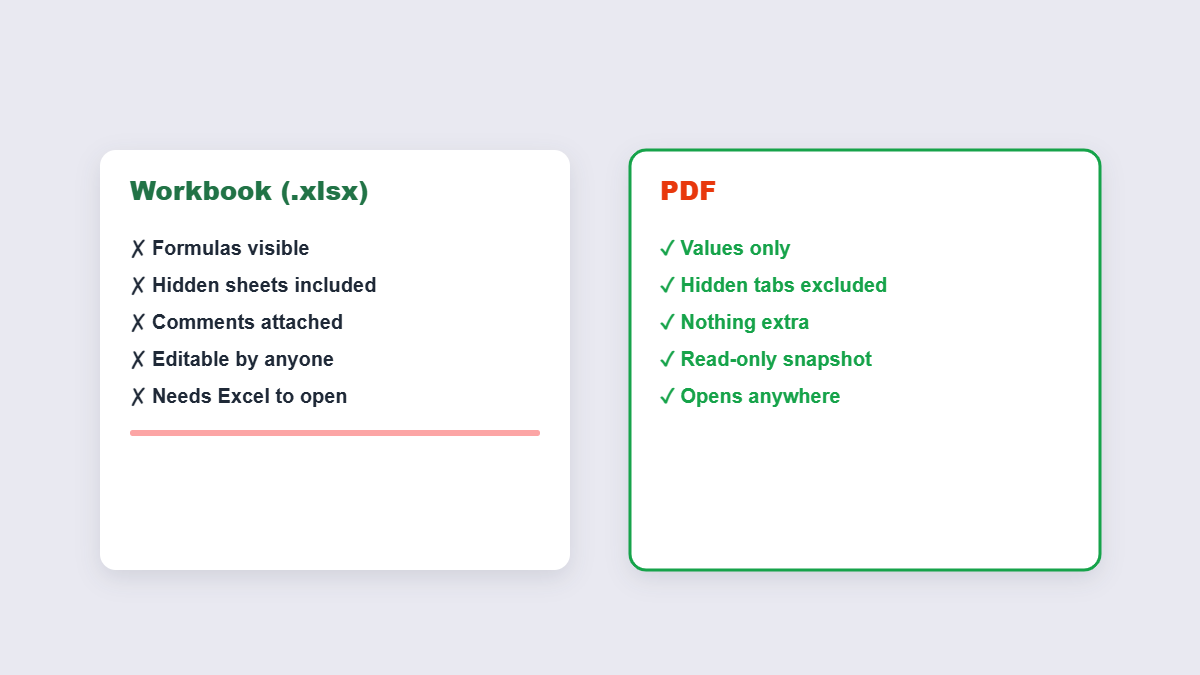
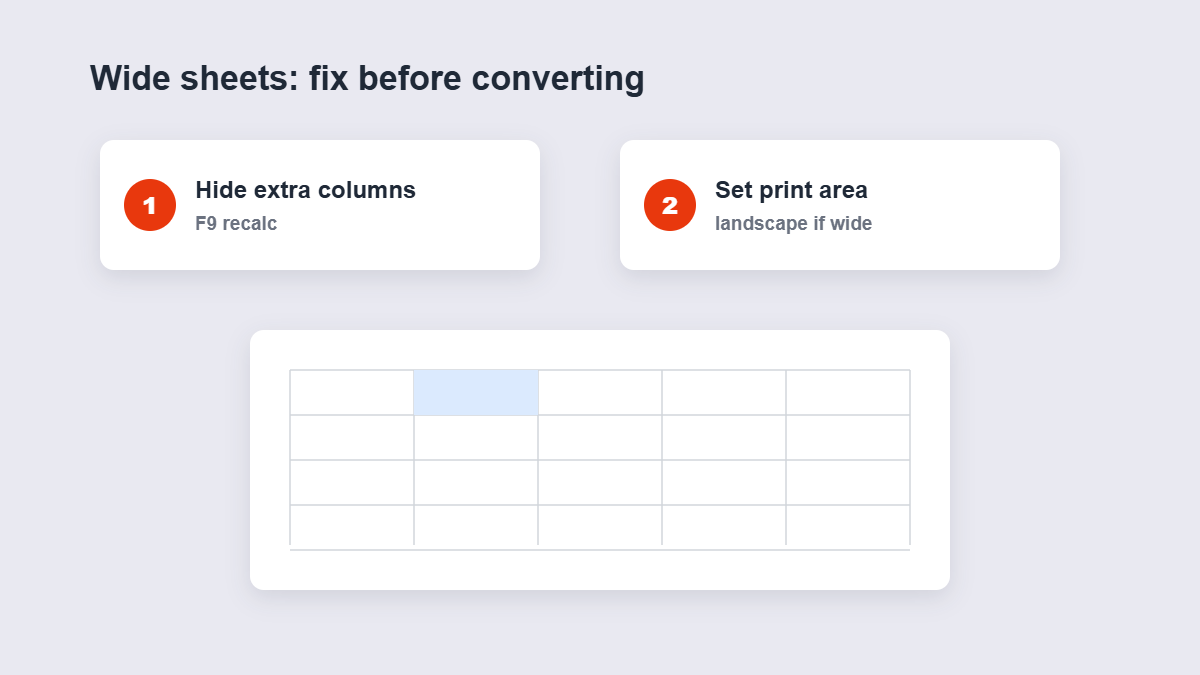
Table of Contents
- Why PDF beats the workbook for sharing
- How to convert step by step
- The formula and hidden-sheet reality
- Handling wide spreadsheets
- The pre-send checklist
- FAQ
Why PDF Beats the Workbook for Sharing
Three reasons, in order of how often they save people:
- The workbook exposes everything. Formulas, cell comments, hidden sheets, old drafts on tab four — a recipient with Excel sees all of it. A PDF shows only what you chose to show.
- The workbook can break. Fonts missing on their machine, columns reflowing, someone typing over a formula by accident. A PDF can’t be accidentally edited.
- The workbook demands Excel. Not everyone has it. Everyone can open a PDF.
If the recipient needs to keep working with the data, send the workbook. If they only need to read it — which is most business sharing — PDF is the professional choice.
How to Convert Step by Step
- Add your file — drag the .xls or .xlsx into the Excel to PDF tool.
- Start the conversion. The sheet’s values and layout render onto PDF pages.
- Check the pages — tables and columns should sit the way you arranged them.
- Download the PDF, ready to send.
The Formula and Hidden-Sheet Reality
Two facts about conversion that change how you prepare the file:
- Formulas become values. The PDF captures calculated results — a recipient can’t see or break your formulas, which is exactly the point. If you need them to keep working with live formulas, they need the workbook, not a PDF.
- Hidden sheets stay hidden. Conversion renders visible sheets. If you don’t want a tab in the PDF, hide it first (right-click the tab → Hide). And the reverse warning: check for tabs you forgot were visible — internal notes sheets end up in client PDFs this way constantly.
One pre-flight habit: press F9 (recalculate) before converting. A stale formula result — showing last month’s total because auto-calc was off — converts exactly as displayed, wrongness included.
.xls, .xlsx — Does It Matter?
Barely. The legacy .xls format (Excel 2003 and earlier) and the modern .xlsx convert the same way through the same tool. What matters more is the file’s content hygiene: workbooks that have been alive for years tend to accumulate empty-but-formatted columns, a dozen tabs of historical data, and named ranges pointing nowhere. A five-minute cleanup — delete what nobody needs, hide what somebody might — makes any conversion cleaner, and makes the next person’s job easier too.
Handling Wide Spreadsheets
Wide sheets are the classic conversion headache: a 20-column table split across four PDF pages is nobody’s idea of readable. The fix happens in Excel before conversion: hide the columns the reader doesn’t need, set the print area to the useful range, and switch the page layout to landscape if it’s still tight. Two minutes of setup turns a four-page scramble into one clean page.
What About CSV Files?
CSV exports (from databases, apps, payment systems) are a cousin case: plain text with no formatting at all. They convert through a dedicated route — the CSV to PDF tool — which builds a proper table grid from the raw rows, rather than inheriting whatever layout the source happened to have. If your data starts its life as a CSV, don’t round-trip it through Excel first; the direct converter does the job in one step.
The Pre-Send Checklist
| Check | Why |
|---|---|
| Hide internal tabs | Hidden sheets don’t convert — visible ones do |
| Recalculate (F9) | The PDF captures values exactly as displayed |
| Set the print area | Only the useful range should reach the pages |
| Check page breaks in preview | Wide tables split awkwardly by default |
| Open the PDF before sending | Thirty seconds that catch every surprise |
Converting, Then Combining
Quarterly reporting is usually three files: the financials workbook, the operations workbook and a Word memo. Convert each to PDF, then run them through the merge tool in order — one attachment, consistent numbering territory, and the recipient’s table of contents suddenly makes sense. This convert-then-merge pattern is the standard workflow for monthly packs, board packs and anything assembled from more than one source file.
The Hidden-Sheet Story Worth Telling
A real pattern that ends careers-by-embarrassment: the quarterly workbook with tabs named “Summary”, “Data” — and “OLD (don’t send)”. The Summary tab gets converted and sent. But the workbook was shared, not the PDF, and “OLD (don’t send)” went with it. The PDF workflow prevents this structurally: hidden sheets don’t convert, and a PDF has no tabs at all. One format choice, and the mistake becomes impossible.
FAQ
How do I convert Excel to PDF for free?
Add the .xls or .xlsx to an online converter and download the PDF. Browser-based tools convert locally — the file never leaves your device.
Do formulas still work in the PDF?
No — the PDF shows calculated values, not formulas. That’s a feature for sharing: readers see results, not your logic.
Do hidden sheets appear in the PDF?
No. Only visible sheets convert. Hide anything you don’t want to share before converting.
Can the recipient edit the PDF?
Not accidentally — and that’s the point. A PDF is a snapshot; the workbook remains your working copy.
Why is my converted PDF missing columns?
Wide sheets split across pages the way Excel prints them. Hide unneeded columns or set a print area, then convert again.
Is my spreadsheet processed in your browser?
Not with browser-based tools — the conversion runs entirely on your device.
